
Restaurant Tip Pooling Excel – Free Template (2026)
1
Free download
Canadian bi-weekly payroll workbook with employee setup, gross-to-net calculations, CPP, EI, deductions, review flags and summary charts.
Download template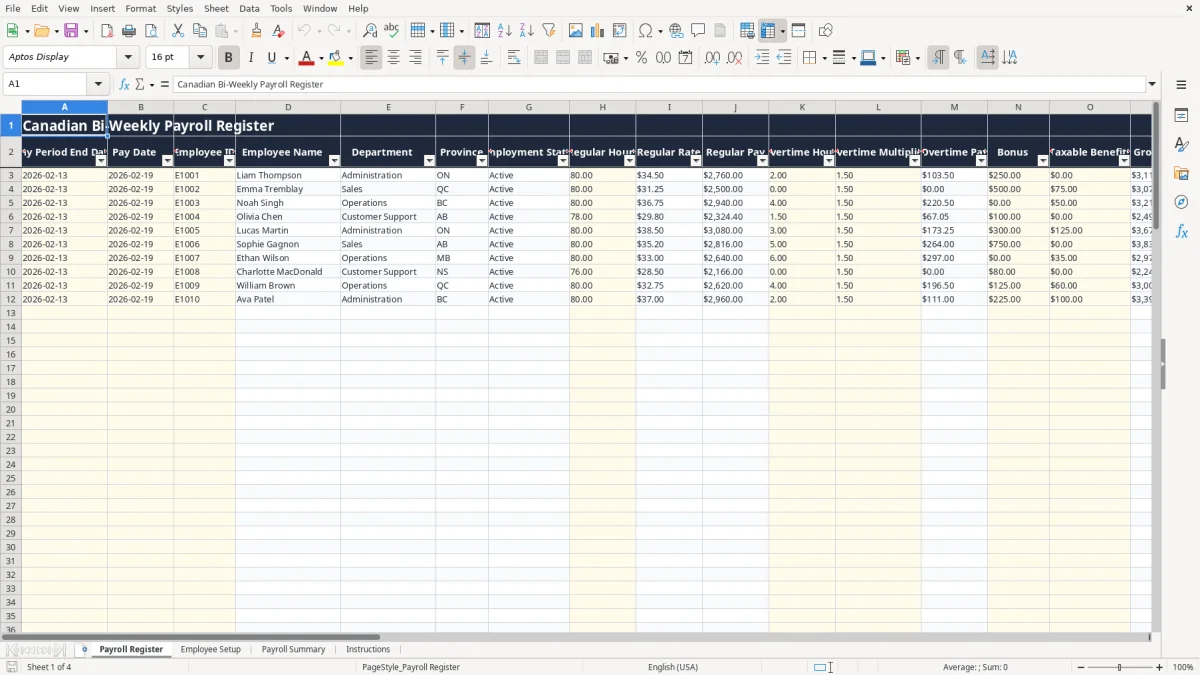
This Canadian bi-weekly payroll register Excel template records each employee's pay period, hours, overtime, bonuses, taxable benefits, deductions and net pay. It includes four sheets: Payroll Register, Employee Setup, Payroll Summary and Instructions, with prepared rows for up to 100 employee entries.
Enter employee details and configurable planning assumptions on Employee Setup, then record each pay period in Payroll Register. The workbook calculates gross pay, federal and provincial tax assumptions, CPP, EI, employee deductions, employer payroll cost and review flags. The sample rows use the 2026-02-13 pay period end date and 2026-02-19 pay date.
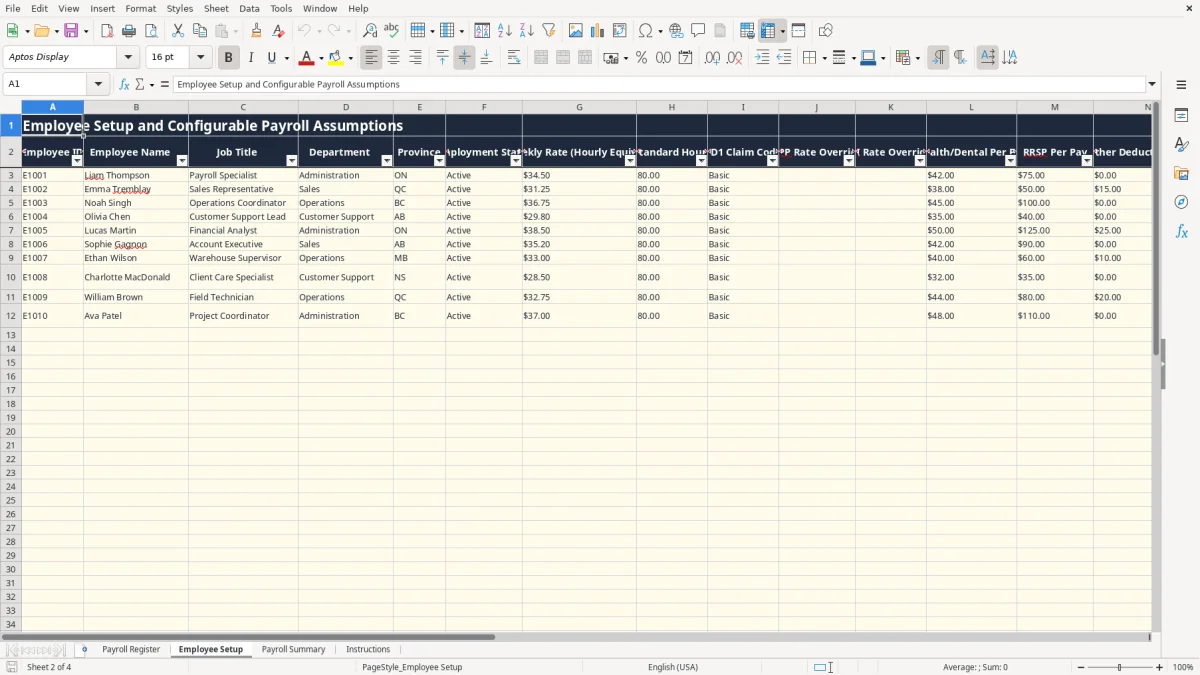
A bi-weekly payroll register is useful when a small Canadian employer needs a repeatable record for every 14-day pay cycle. An office manager at a plumbing company may use it for four employees with regular hours, overtime, taxable tool benefits and occasional bonuses. A bookkeeper at an incorporated business may use the same structure across administration, sales, operations and customer support.
The workbook's sample data illustrates three employees in different provinces: Ontario, Quebec and British Columbia. The Payroll Register records one employee per row and includes a pay period end date, pay date, employee ID, department, province and employment status before the earnings and deduction columns begin.
Start with the time records approved by the supervisor. If an employee earns $34.50 per hour, works 80 regular hours and records 2 overtime hours at a 1.5 multiplier, regular pay is $2,760.00 and overtime pay is $103.50. A $250.00 bonus produces gross pay of $3,113.50 before deductions, assuming no taxable benefit.
Enter those changing amounts in the yellow input cells rather than overwriting formulas. Employee Name, Department, Province, Employment Status, Regular Rate and recurring deductions are retrieved from Employee Setup, while the register calculates the totals.
Although the pay cycle is bi-weekly, the register also helps when reconciling a bank payment or preparing payroll records at fiscal year-end. Payroll Summary can isolate a selected period and show gross pay, net pay, employer payroll cost and department totals. For a four-employee contractor, comparing the summary with the payroll bank file can catch a missing row before the payment is released.
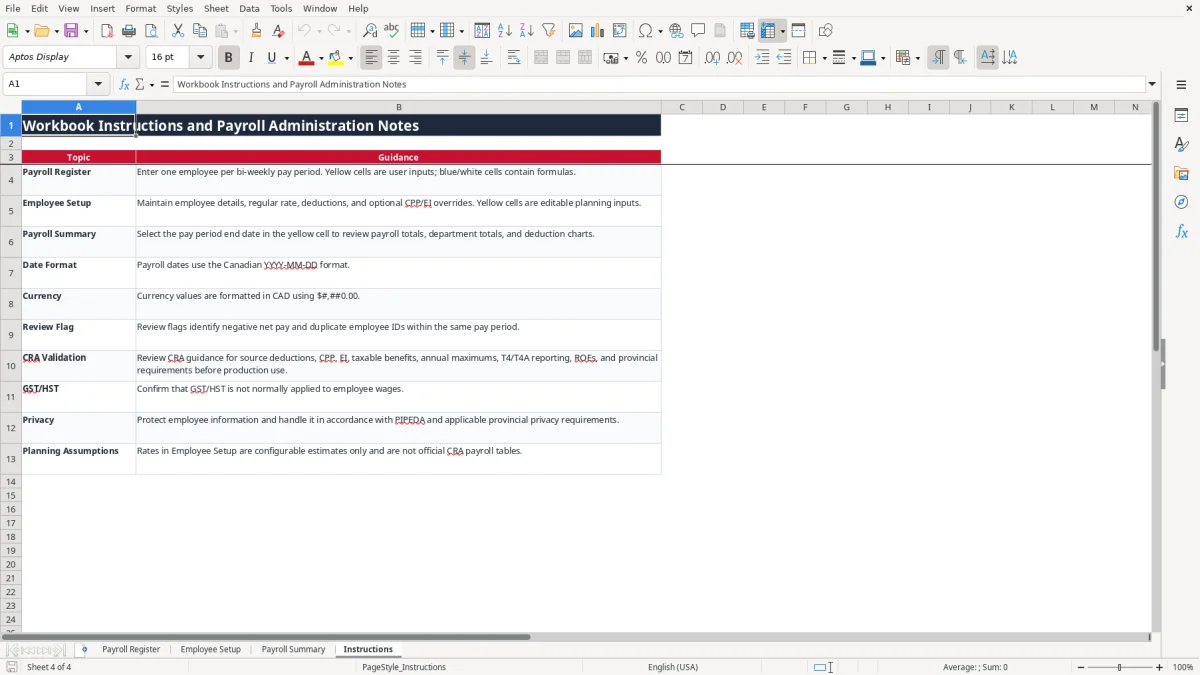
This is a payroll calculation and planning workbook, not a replacement for payroll software or CRA validation. The Instructions sheet specifically separates editable planning assumptions from official payroll requirements.
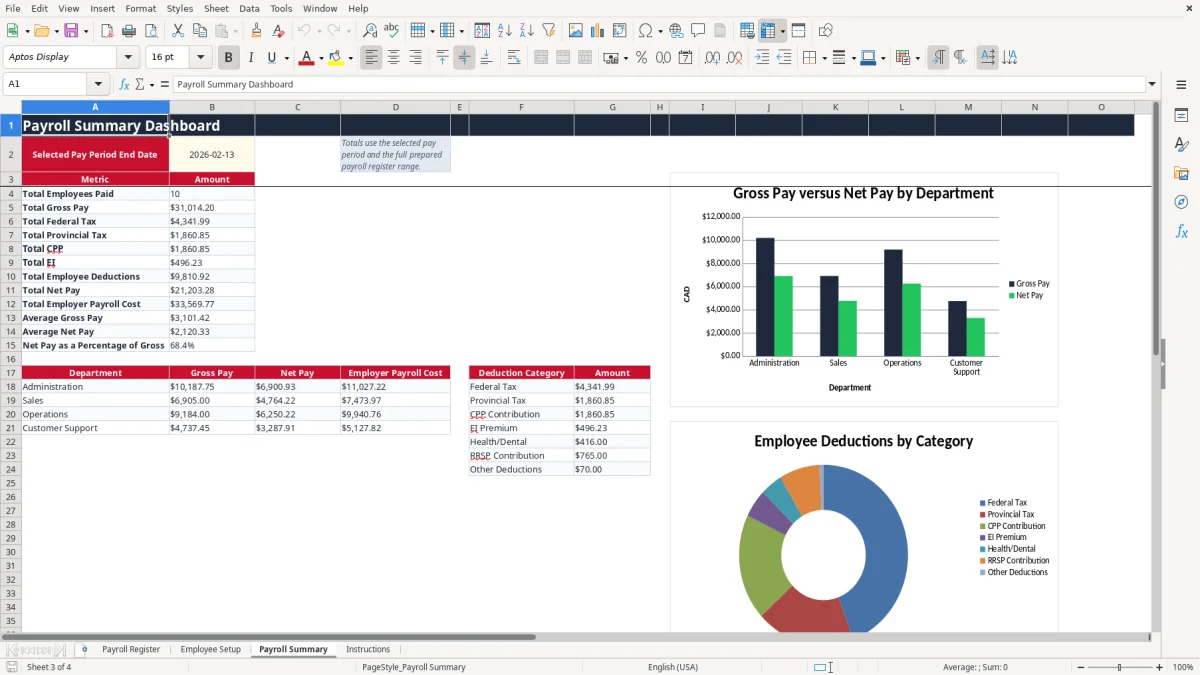
Canadian employers must account for payroll source deductions, including federal and provincial income tax, CPP and EI. The workbook separates Federal Tax, Provincial Tax, CPP Contribution and EI Premium in columns Q:T, then adds health and dental, RRSP and other deductions. The rates in Employee Setup are configurable estimates and are not official 2026 CRA payroll tables.
Before using the file for a real payroll run, compare each assumption with the 2026 CRA Payroll Deductions Online Calculator or current payroll tables. CPP and EI have annual employee maximums, and the correct income-tax result depends on province, pay frequency, TD1 information and year-to-date figures. A flat percentage applied to every pay period is acceptable for planning, but it is not a complete production calculation.
After deductions are calculated, an employer must remit source deductions to the CRA using the correct payroll program account, normally the RP account attached to the business number. The remittance deadline depends on the employer's assigned schedule; do not treat the pay date as the remittance deadline. The payroll records should also support the annual T4 process and a ROE when employment ends or an interruption of earnings occurs.
For example, if a payroll run shows $12,000 of gross pay, $2,800 of employee deductions and $400 of employer CPP and EI amounts, the bank payment to employees is not the full $12,000. The employer must reconcile the $9,200 net-pay total and separately track amounts payable to the CRA and other deduction recipients.
Employee wages normally do not have GST or HST applied. A taxable benefit, health plan, RRSP deduction or bonus can have separate tax treatment, so the source document must be reviewed rather than relying on the register alone. Protect names, employee IDs, rates and deductions under PIPEDA and applicable provincial privacy rules; payroll information is sensitive personal information.
The most expensive payroll mistakes are usually small entry errors repeated across several pay periods. I have seen an office manager enter 80 regular hours for an employee who worked 72, then add overtime on top without checking the time sheet. At $31.25 per hour, the eight-hour overpayment is $250.00 before related CPP, EI, tax and correction work.
Bi-weekly registers are especially vulnerable to copying the prior period and forgetting to remove a terminated employee. They are also vulnerable to adding the same employee twice. This workbook's Review Flag uses the pay period end date and employee ID to identify duplicate entries, and it flags negative net pay. A duplicate $1,600.00 gross row can distort payroll funding, deductions and the employee's year-to-date records.
The prepared register has rows 3:102, not an unlimited database. If you paste records outside that range, the formulas and Payroll Summary will not automatically include them. Keep new entries inside the prepared range and use the filter on row 2 to inspect one pay period at a time.
Another common failure is leaving a former rate or recurring deduction in Employee Setup. A $75.00 RRSP deduction entered for an employee who cancelled it changes net pay by $75.00 every pay period; over 26 periods, that is $1,950.00. The same problem occurs when a CPP or EI override is copied without checking the current CRA limit or the employee's year-to-date position.
Do not overwrite formula columns simply to force a desired result. If a calculation looks wrong, check the employee ID, the setup row, the pay-period date and the input hours first. The workbook's blue and white formula cells are intended to remain calculated, while yellow cells are the user inputs.
Payroll Summary can show a precise total even when a bonus was entered as regular hours or a taxable benefit was omitted. Compare the summary with approved time sheets, bonus authorizations, deduction schedules and the payroll bank file. A clean $20,000.00 total is not evidence that the underlying 10 employee rows are correct.
Use the workbook at a fixed point in the payroll routine rather than saving it for month-end. A practical sequence is to close time entry on Monday, update Employee Setup only when an approved change exists, complete the register on Tuesday and review Payroll Summary before the payment file is released. For a bi-weekly cycle, that routine gives you a defined checkpoint every 14 days.
The template already uses date, decimal and list validation. Keep those controls in place instead of allowing free-text provinces or employment statuses. When you copy a prior period, change both dates deliberately: the workbook accepts dates from 2000-01-01 through 2100-12-31, so an accidental old date will not necessarily produce an Excel error.
This file is prepared for 100 register rows and 100 Employee Setup rows. A company with 12 employees paid bi-weekly may fit comfortably, but 60 employees across 26 pay periods would consume 1,560 register rows in one year and require a separate archive or a different system.
Move to dedicated payroll software when you need year-to-date tax calculations, automated CRA remittances, vacation accruals, statutory-holiday calculations, pay-stub delivery, audit trails or multiple payroll administrators. Until then, protect the workbook, restrict access to payroll staff and retain a dated copy after each approved run.