
Provincial Tax Excel Template – Free (2026)
6
Free download
Track Canadian GST/HST credit estimates, CRA payment dates, actual amounts, variances, statuses and late payments for up to 100 records.
Download template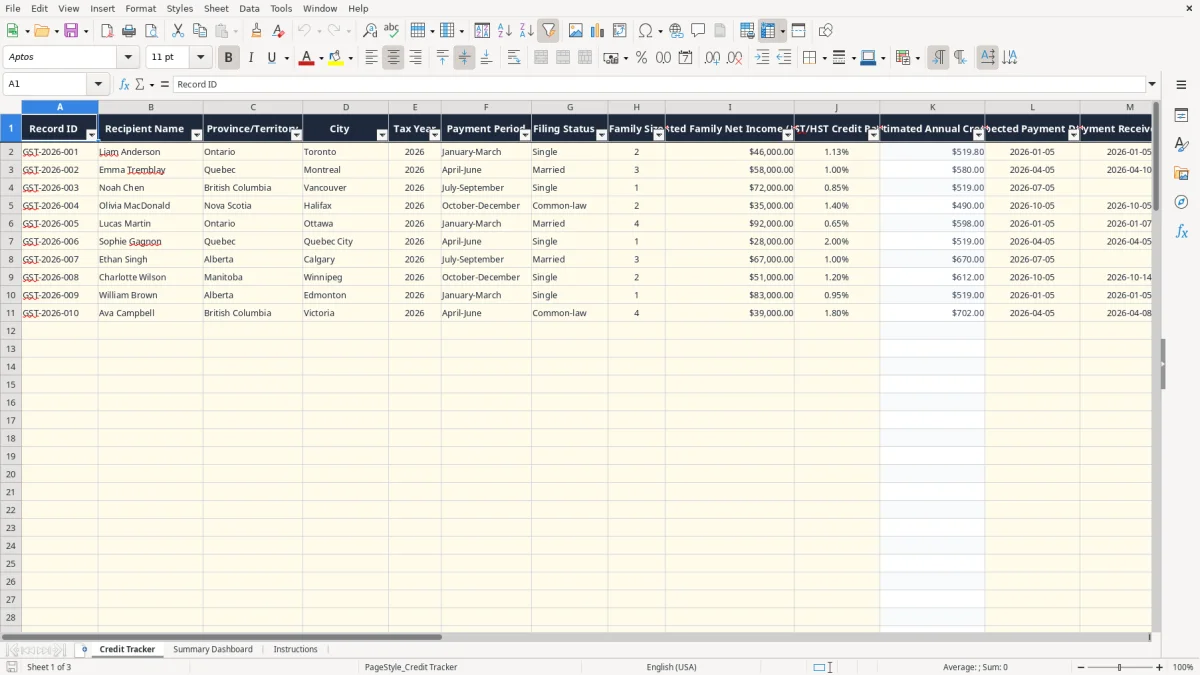
This GST/HST credit tracker Excel template records recipient details, adjusted family net income, family size, estimated annual credit, expected CRA payment dates, actual payments, variances and late days. It includes 100 prepared tracking rows, formula-driven payment status and a dashboard for reviewing totals by period, province and status.
Use the Credit Tracker sheet for data entry, the Summary Dashboard for management review and the Instructions sheet for limitations, privacy reminders and CRA follow-up guidance. The workbook is a planning and record-keeping tool, not an official CRA eligibility calculator.
This workbook is useful when several people need their GST/HST credit information monitored in one place. A community support worker may track 25 clients, an office administrator may maintain records for a benefits programme, and an individual may use it to compare expected CRA deposits with bank activity throughout 2026.
The Credit Tracker sheet (image 1) has columns for Recipient Name, Province/Territory, City, Tax Year, Payment Period, Filing Status, Family Size, Adjusted Family Net Income (AFNI) and GST/HST Credit Rate. It also records Expected Payment Date, Payment Received Date, Actual Payment and Notes. The list is prepared for rows 2 through 101, so a small organization can work with 100 records without adding formulas.
The formula in Estimated Annual Credit applies the entered rate to AFNI and caps the result at $519 for a family size of one. For a family size greater than one, it uses $519 plus $95 for each additional member, subject to the calculated amount. With AFNI of $46,000, a family size of two and a rate of 1.13%, the calculation is $46,000 × 1.13% = $519.80, limited to $614; Expected Payment is then $153.50.
These are workbook formula mechanics, not an official eligibility result. The Instructions sheet specifically says that the rate fields are editable planning inputs and that current CRA amounts, eligibility and dates must be verified separately.
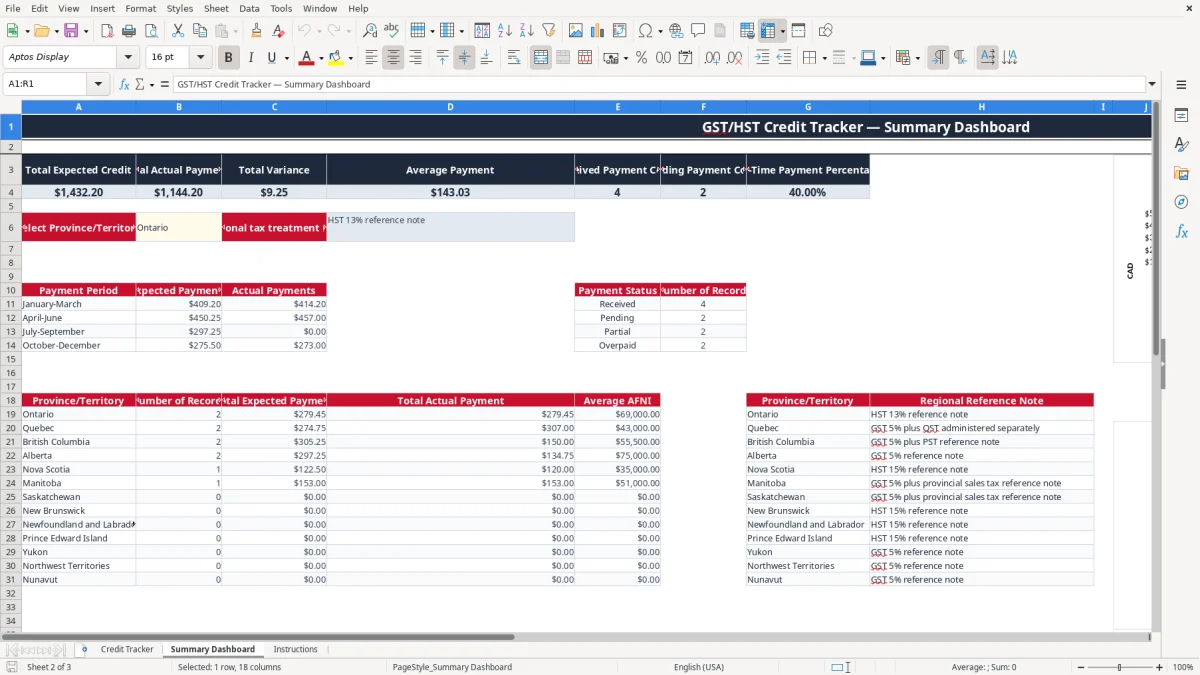
Image 2 shows the Summary Dashboard. It displays total expected credit, actual payments, variance, average payment, received and pending counts, plus on-time payment percentage. Its quarterly table separates January-March from the other three periods, while the province table can show that 12 Ontario records have a different average AFNI from 8 Quebec records.
The CRA bases GST/HST credit information generally on the income tax return and adjusted family net income. This workbook mirrors that administrative workflow by storing AFNI, family size, filing status and tax year, but it does not replace a filed return, a CRA notice or an official benefit calculation.
Do not confuse this benefit with business GST or HST collection. GST is 5% federally; HST is 13% in Ontario and 15% in Nova Scotia, New Brunswick, Prince Edward Island, Newfoundland and Labrador. Quebec generally has 5% GST plus QST administered separately, while British Columbia generally has 5% GST plus PST. Those rates are regional reference notes in the dashboard, not inputs that calculate a recipient's credit.
A business generally must register for GST/HST once worldwide taxable revenue exceeds $30,000 over four consecutive calendar quarters, or immediately when it exceeds $30,000 in a single quarter. Registration creates a business number program account ending in RT and may involve input tax credits, filing periods and remittances. None of those business obligations is calculated by this tracker.
For example, an Ontario contractor invoicing $10,000 plus 13% HST has collected $1,300 of HST on that invoice. That amount belongs in the contractor's GST/HST records, not in Actual Payment on this workbook. The tracker is for comparing benefit-related expected and received amounts.
Keep CRA correspondence and supporting records for the CRA's six-year retention period where that rule applies to the underlying tax records. Because names, income and family information are personal information, follow PIPEDA safeguards: restrict access, use secure storage and avoid sharing unnecessary details. The Instructions sheet also tells you to verify current rules and dates directly with CRA.
The most expensive errors I see are not formula errors; they are mismatched dates, stale income information and amounts copied from the wrong person. A coordinator enters Emma Tremblay's $177.25 payment on Liam Anderson's row, and the dashboard then reports a false overpayment or partial payment. That can lead to an unnecessary CRA enquiry and hours of reconciliation.
Payment Status compares Actual Payment with Expected Payment. If the actual amount is blank, the result is Pending; if it equals the expected amount, it is Received; a lower amount is Partial and a higher amount is Overpaid. A $129.95 deposit against an expected $129.95 is received, while a $100.00 deposit creates a $29.95 negative variance from the recipient's perspective.
The workbook's Variance formula is Actual Payment minus Expected Payment. Therefore, $177.25 actual less $150.00 expected produces $27.25, not a shortfall. Label your review clearly: the sheet's positive result means actual cash exceeded the expected figure.
Days Late is zero when Payment Received Date is blank, earlier than or equal to Expected Payment Date. It calculates the date difference only when the received date is later. For example, an expected date of 2026-04-05 and a received date of 2026-04-10 produces 5 days late, matching the sample Emma Tremblay row.
Do not enter a guessed received date simply to clear a pending item. In the sample Noah Chen record, the expected date is 2026-07-05 and the received date is blank, so the correct operational state is Pending. The better practice is to add a note such as Awaiting CRA payment and review it during the next payment check.
The spreadsheet works best when you update it at a fixed time rather than whenever someone remembers. For a small office, schedule a 15-minute review on the first Friday after each quarterly payment period; for an individual, compare the bank statement with the tracker on the day the expected CRA deposit is due.
For example, if 40 records have $5,200 of expected quarterly payments and only $4,950 has arrived, the dashboard variance should be checked before anyone contacts CRA. A $250 difference may be 2 partial payments, one missing entry or a genuine payment issue; the status counts help narrow the review.
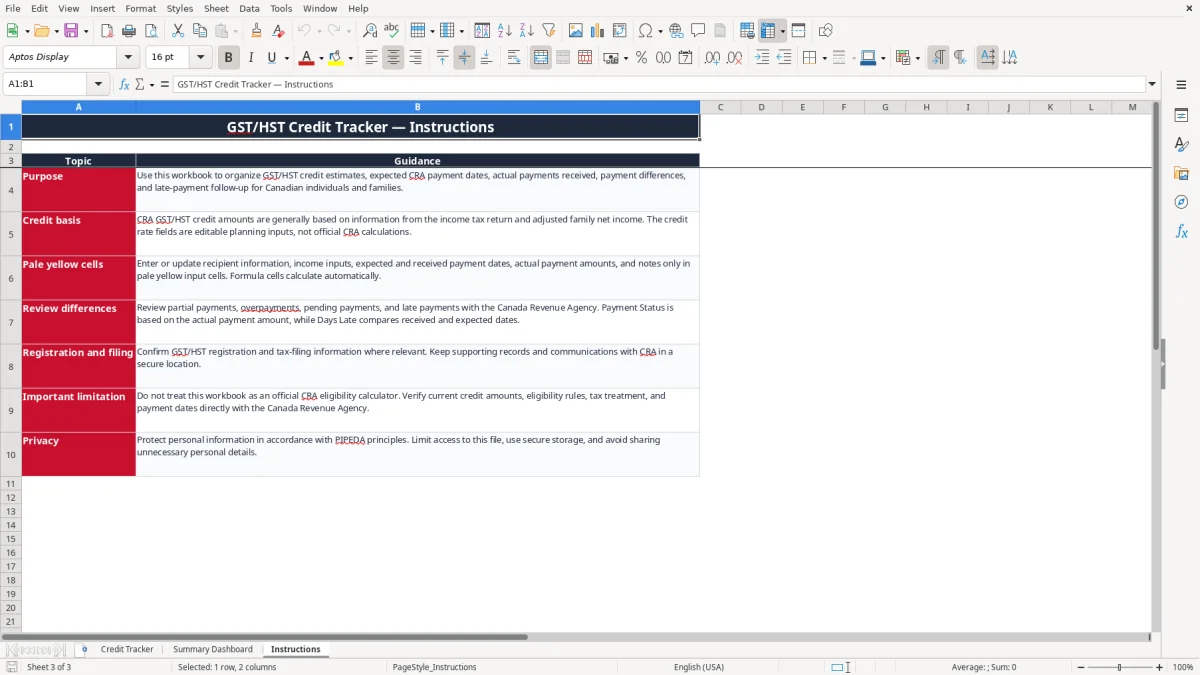
Enter information only in the pale yellow cells identified by the workbook. Keep formula columns K, N, P, Q and R intact, save a dated backup after each quarterly review and limit access to people who need recipient information. The Instructions sheet is image 3 and includes the workbook purpose, credit-basis warning, CRA verification reminder and privacy guidance.
This file is appropriate for a modest list of 100 records. Move to dedicated benefits or case-management software when you need audit trails, user permissions, automated CRA imports, more than 100 active records or controlled access by multiple staff members.