
CNESST Remittance Excel – Free Template (2026)
0
Free download
Track Ontario WSIB earnings, rates, adjusted premiums, due dates and payment status with a three-sheet Excel remittance template.
Download template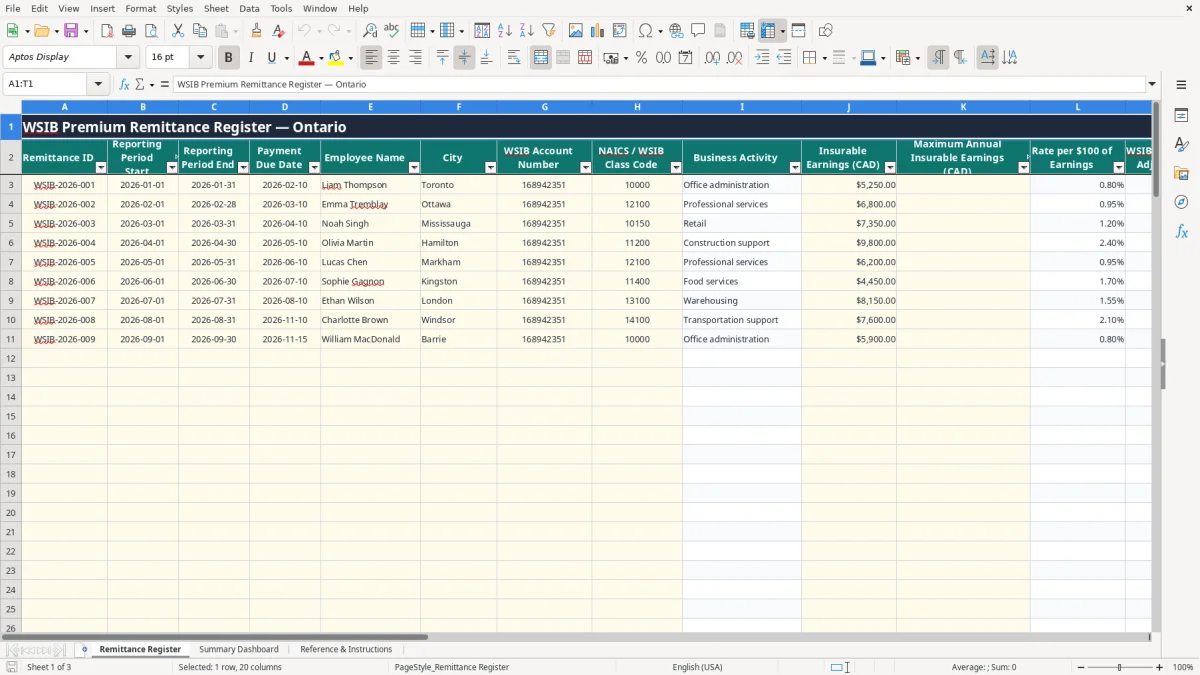
This Ontario WSIB premium remittance Excel template records reporting periods, employee earnings, classification codes, rates, premium adjustments, payment dates and status. It includes a Remittance Register, Summary Dashboard and Reference & Instructions sheet for estimating and tracking 2026 remittances.
Enter the yellow input cells in the register and let the workbook calculate business activity, premium before adjustment, adjusted premium, prior-period variance and the maximum check. The sample rows show January through March 2026 activity, while rows through 102 are prepared for additional entries.
A payroll clerk at an Ontario construction company may open this workbook after each payroll run, while an office manager at a plumbing business may maintain it before the next WSIB payment deadline. A bookkeeper at an incorporated business can use the Remittance Register to keep employee-level earnings and classification information together instead of reconstructing the calculation from payroll exports.
The register is especially useful when several employees have different classifications. For example, a four-employee contractor could record $5,250 of insurable earnings for one employee, $6,800 for another and $7,350 for a third during separate 2026 periods. The class code in column H retrieves the activity and rate, while column M calculates the premium before the adjustment.
Image 1, the Remittance Register, contains columns for reporting dates, payment due date, employee name, city, WSIB Account Number, NAICS / WSIB Class Code, insurable earnings, maximum annual insurable earnings, rate, adjustment and payment status. The sample row for Liam Thompson uses $5,250 of earnings and a 0.80% office administration rate, producing a $42.00 premium before the 2% adjustment and $42.84 after it.
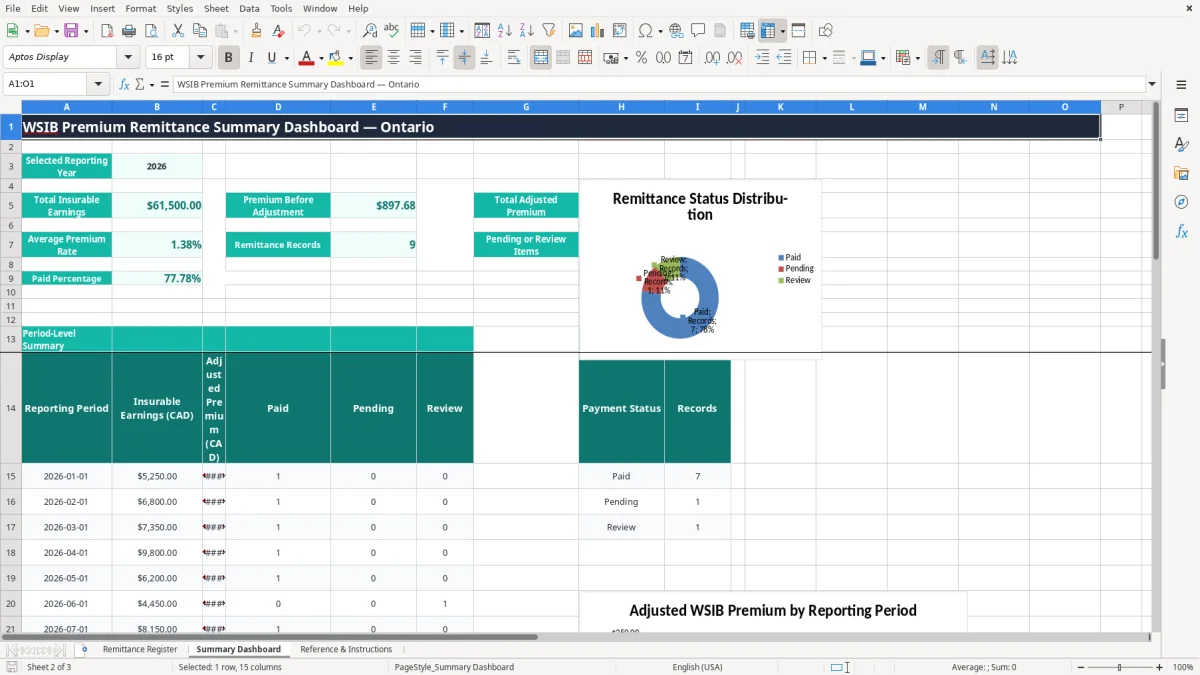
Image 2 shows the Summary Dashboard with total earnings, premium totals, average rate, record count, paid percentage and pending or review items. Its period table covers January through December 2026, so a treasurer, payroll clerk or owner can review the year without manually adding each register row.
Use this as a tracking and estimation workbook, not as proof that a calculated amount is the amount WSIB will accept. The Reference & Instructions sheet specifically tells you to confirm the account, classification, maximum and filing requirements.
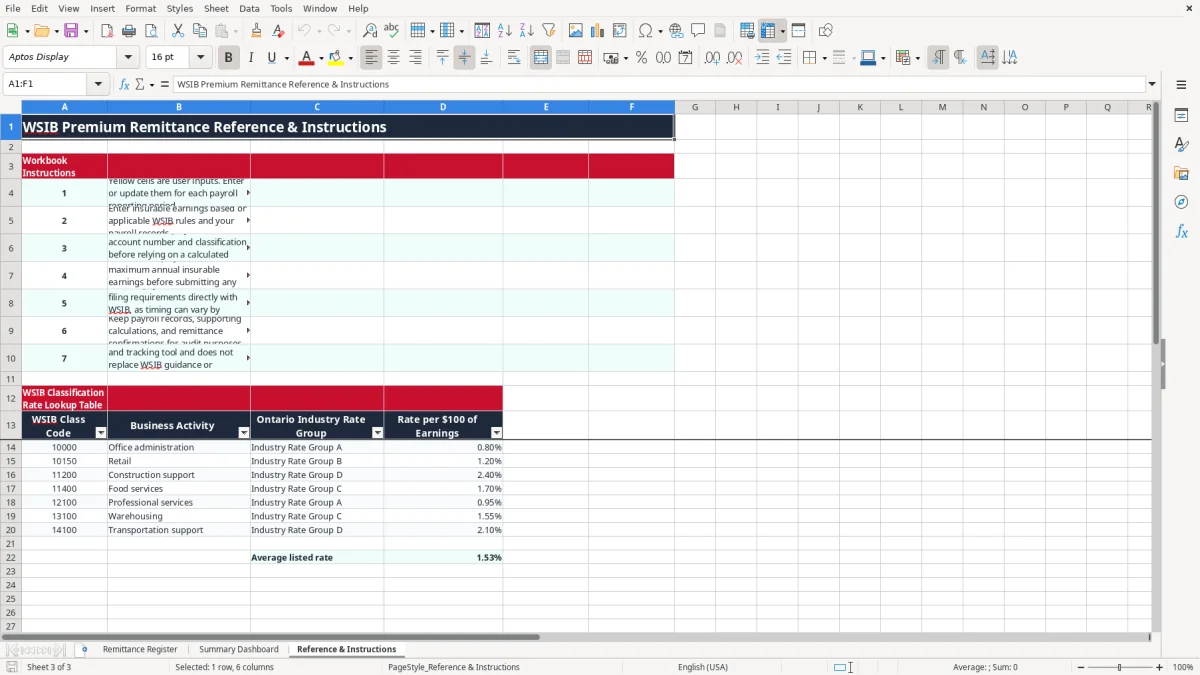
WSIB premiums are based on insurable earnings and the employer's classification rate. This workbook expresses the rate per $100 of earnings: $5,250 at 0.80% equals $42.00 before adjustment, while $6,800 at 0.95% equals $64.60. The workbook's lookup table contains sample entries such as office administration, retail, construction support, food services, professional services, warehousing and transportation support.
Do not treat those workbook rates as universal 2026 rates. Ontario employers must confirm the current rate assigned to their WSIB account and classification, as well as the applicable maximum annual insurable earnings. The workbook deliberately makes the maximum an input because the employer must confirm it before relying on the result.
Enter the WSIB Account Number for the employer and select the applicable class code. The VLOOKUP formulas in columns I and L retrieve the activity and rate from Reference & Instructions, cells A14:D20. If a code is not in that table, the lookup result remains blank; add or update the reference data only after confirming the classification and rate from WSIB.
Payment due dates are entered manually in column D because WSIB filing timing can vary by account and arrangement. A sample January period ends on 2026-01-31 with a 2026-02-10 due date, but that sample is not a general deadline for every employer.
Keep payroll records, earnings support, classification correspondence, calculations and payment confirmations. The workbook's instructions require confirmation directly with WSIB and state that the file is an estimation and tracking tool. It is not a substitute for the employer's WSIB account guidance or a filing confirmation.
The most expensive errors usually begin with the wrong classification, not with arithmetic. A retail employer accidentally using a 2.40% construction-support rate instead of a 1.20% retail rate on $20,000 of earnings would calculate $480 rather than $240 before any adjustment—a $240 difference for that period.
Another common problem is entering gross payroll instead of insurable earnings. The workbook cannot decide which payroll components are insurable. If $30,000 is entered when only $24,000 is insurable, a 1.55% rate produces $465 instead of $372, overstating the estimate by $93.
Column K requires the employer-confirmed maximum annual insurable earnings. Column T compares the current J value with K and returns Within maximum or Review maximum. It is a control, not a WSIB ruling. If $68,000 is entered against a $65,000 maximum, the Review maximum result should stop the payment from being treated as routine.
Experience rating adjustments also create mistakes. A 3% adjustment must be entered as 0.03, not 3; otherwise $1,000 becomes $1,030 rather than $1,300. The validation range allows values from -1 to 1, but that range does not confirm that the percentage is correct for your account.
Marking a row Paid without entering a payment date leaves a weak audit trail. Duplicate Remittance IDs can also make the dashboard record count look complete while overstating total premiums. For example, duplicating a $275 adjusted premium adds $275 to the dashboard even though no second payment is owed.
Finally, a blank or mismatched class code produces blank calculated fields. Review the code, earnings, maximum, adjustment and payment status together before using the amount for a remittance decision.
The easiest routine is to update the register immediately after payroll is finalized, before the payment due date becomes urgent. Set aside 15 minutes on the same day each month: enter the period, earnings and classification, then review the calculated premium and payment status while the payroll source documents are open.
At month-end, open Image 2's dashboard and check the Pending or Review Items count. For example, if 12 records exist and 2 remain Pending, the paid percentage should be 83.33% when the other 10 are marked Paid. That figure is a review signal, not evidence that the filing itself is complete.
At year-end, retain a copy of the workbook with supporting payroll reports and payment confirmations. The file has 100 prepared register rows, which is practical for a small employer but not a good long-term system for thousands of employee-period records. Move to payroll or accounting software when you need user permissions, automated WSIB updates, electronic filing, detailed audit history or more than the prepared rows can comfortably hold.