
CNESST Remittance Excel – Free Template (2026)
0
Free download
Track contractor payments, GST/HST, T4A boxes, and slip status in one Canadian Excel tracker.
Download template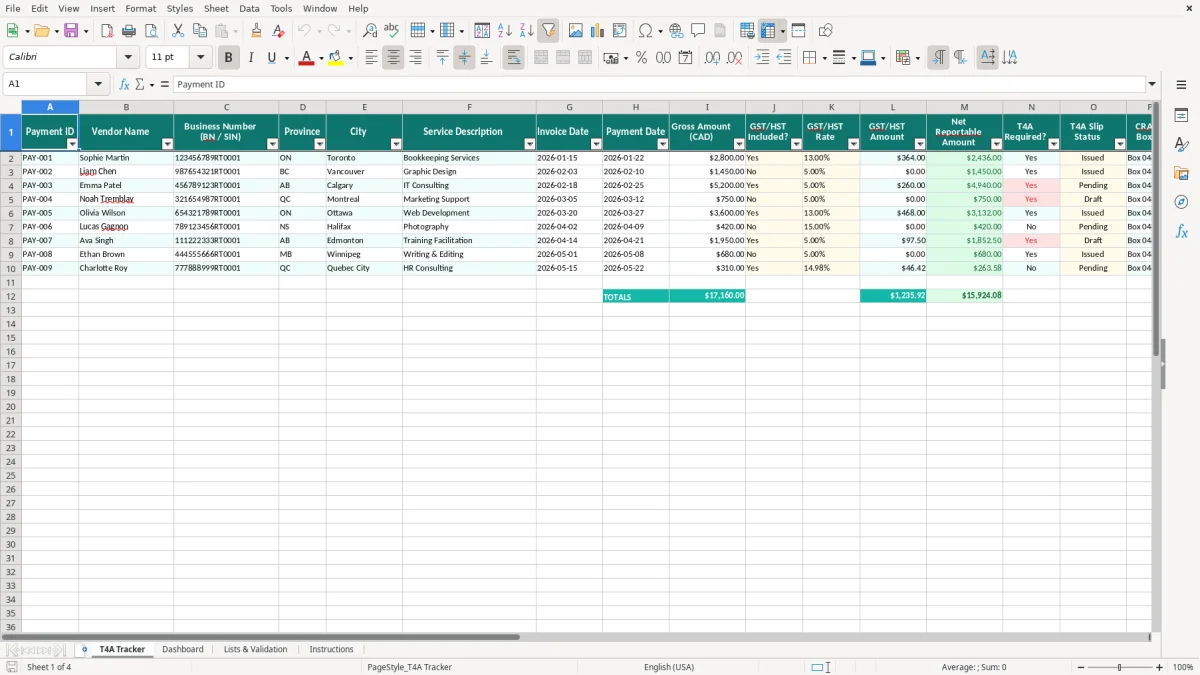
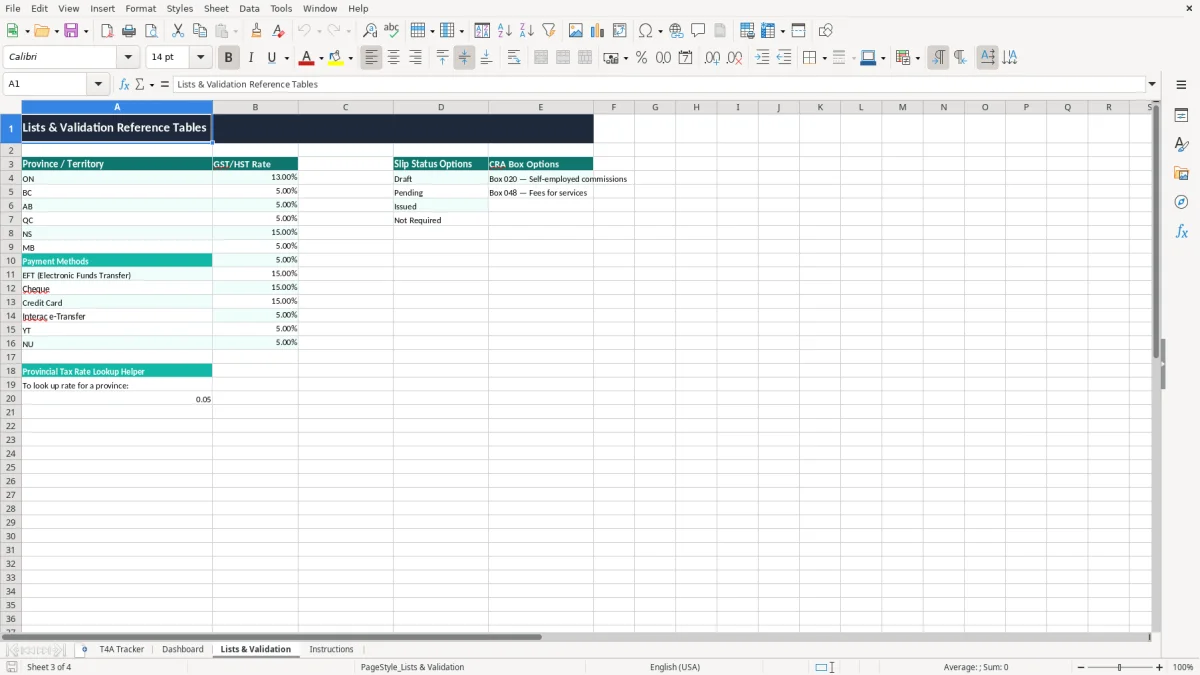
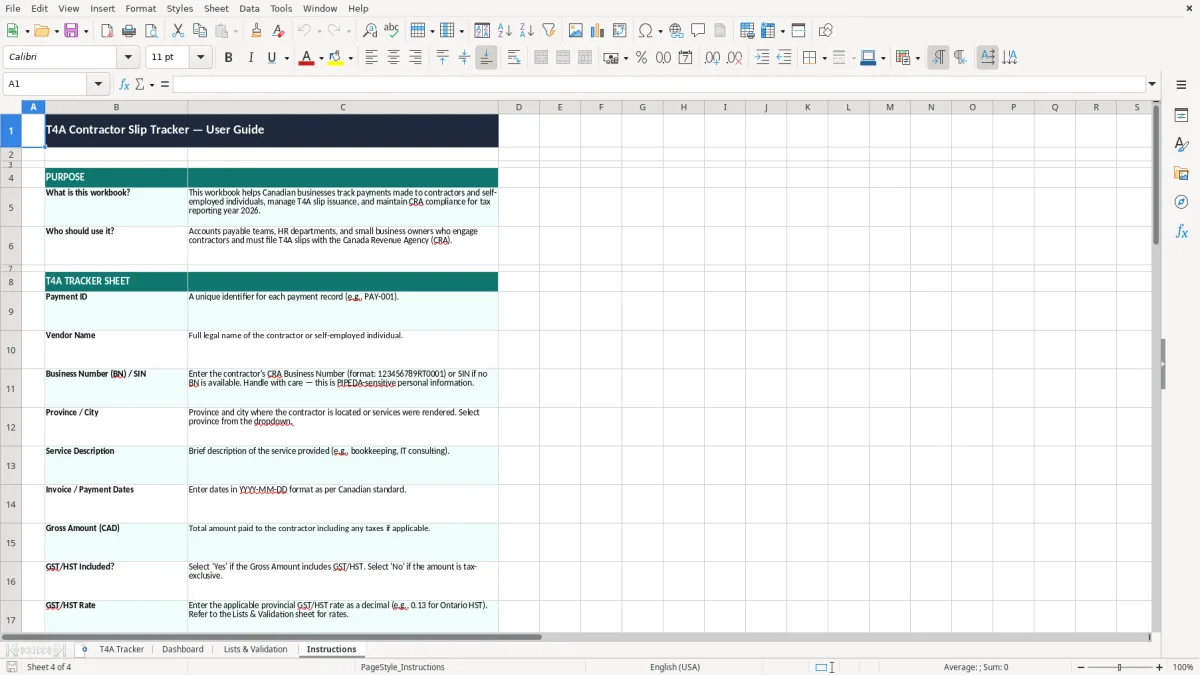
This T4A contractor slip tracker Excel template helps you record contractor payments, GST/HST details, and slip status in one place. It includes a T4A Tracker, Dashboard, Lists & Validation, and Instructions sheet.
Use it when you pay self-employed contractors, need to sort out net reportable amounts, or want to see which slips are still missing before filing. The tracker is built for Canadian records, with fields for BN or SIN, province, GST/HST rate, and CRA slip details.
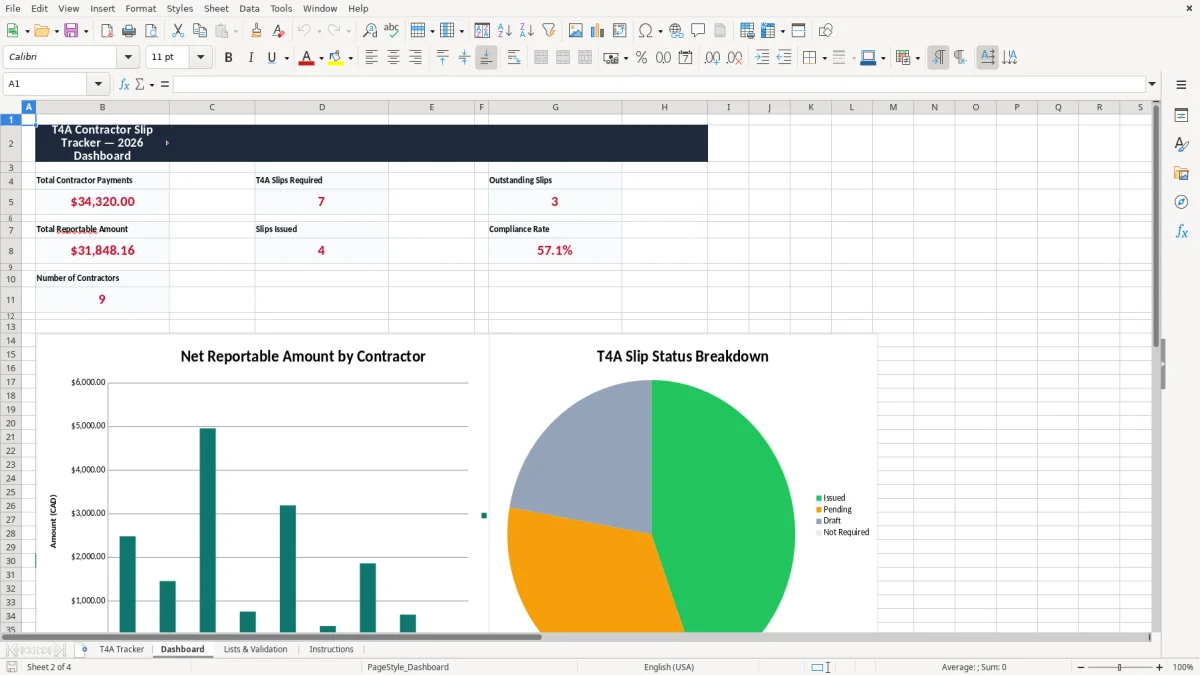
Image 1 shows the data-entry sheet with one row per payment. Image 2 summarizes totals and slip status so you can check what is left before year-end.
You use this tracker when you pay independent contractors and need a clear record before year-end. A trades company with 4 subcontractors, for example, might enter 18 invoices in a month, then use the sheet to see which payments are reportable and which slips still need attention.
A sole proprietor, a bookkeeper at an incorporated business, or a treasurer at a non-profit usually opens it when payments start piling up. If you paid one graphic designer $4,800, one installer $12,000, and one consultant $2,300 in the same quarter, the tracker gives you one place to check names, dates, and slip status.
The T4A Tracker sheet is built for line-by-line entry: payment ID, vendor name, BN or SIN, province, city, service description, invoice date, payment date, gross amount, GST/HST fields, net reportable amount, and slip status. That is exactly the kind of detail you want when February arrives and you are matching 30 or 40 contractor payments against your records.
Image 2 gives you a fast summary instead of forcing you to scan the full list. If you paid 22 contractors and 7 slips are still marked pending, you can deal with those before the rush instead of discovering them on filing day.
The CRA expects you to keep business records for six years, so this tracker is built to hold the details you will need when a contractor asks for support or when you review a return later. If you issue T4A slips, you also need the payment records behind them, not just the final slip total.
For Canadian payees, the worksheet includes Business Number and SIN space because you may be dealing with either one. If a vendor is registered as a business and another is an individual consultant, you can keep both records organized without mixing them up.
The sheet separates gross amount, GST/HST included, rate, and GST/HST amount so you can tell what is reportable and what is tax. In Ontario, a $1,130 payment with 13% HST includes $130 tax and $1,000 before tax, while a $5,650 payment with 13% HST includes $650 tax and $5,000 before tax.
The CRA Box column gives you a place to record the slip box you are using, which is useful when you are preparing multiple slips and comparing them with your internal totals. That matters most when you are reconciling several months of payments in one sitting instead of rebuilding the file from memory.
The usual mistake is treating contractor payments like one big annual total and forgetting the supporting details. When that happens, you spend hours chasing invoice dates, hunting for the vendor’s BN or SIN, and trying to remember whether GST/HST was included in the amount you recorded.
If you enter a $2,000 payment but do not split out the 13% HST in Ontario, you can end up reporting the wrong net amount. On a batch of 12 contractor payments, even a $130 error per line becomes $1,560 of bad reporting, which is enough to create a correction problem later.
If T4A Required? and T4A Slip Status are not updated as you go, you may think the file is done when 5 slips are still missing. That usually turns into a last-minute scramble, extra staff time, and duplicate checking across emails, bank statements, and invoices.
When a contractor questions a slip, you need the original payment dates, gross amount, and service description to show how you reached the number. A clean tracker saves you from rebuilding the record one transaction at a time, which is exactly the kind of job that eats an afternoon when you should be working on other year-end tasks.
That same recordkeeping becomes easier when each deduction is tied to a remittance tracker, so the payment dates, amounts, and service notes are already organized before the year-end review begins.
The file works best when you tie it to a fixed task, not to spare time. Most small businesses get better results by updating it right after the weekly pay run or on the last business day of the month, when the records are already in front of you.
If you are tracking hundreds of contractor payments across multiple entities, a spreadsheet will start to feel tight. At that point, you usually need accounting software with vendor records, remittance support, and better controls around source documentation.
For a small operation with 8 to 40 contractor payments a year, this workbook is usually the easier choice. It stays light, gives you a quick view before filing, and does not force you into a bigger system before you need one.
Once the payments start flowing into a filing cycle, the next check is a summary reconciliation sheet to confirm the totals line up before you submit anything.