
CNESST Remittance Excel – Free Template (2026)
0
Free download
Track WorkSafeBC contractor accounts, clearance dates, expiry alerts, contract values and verification notes across Canadian projects.
Download template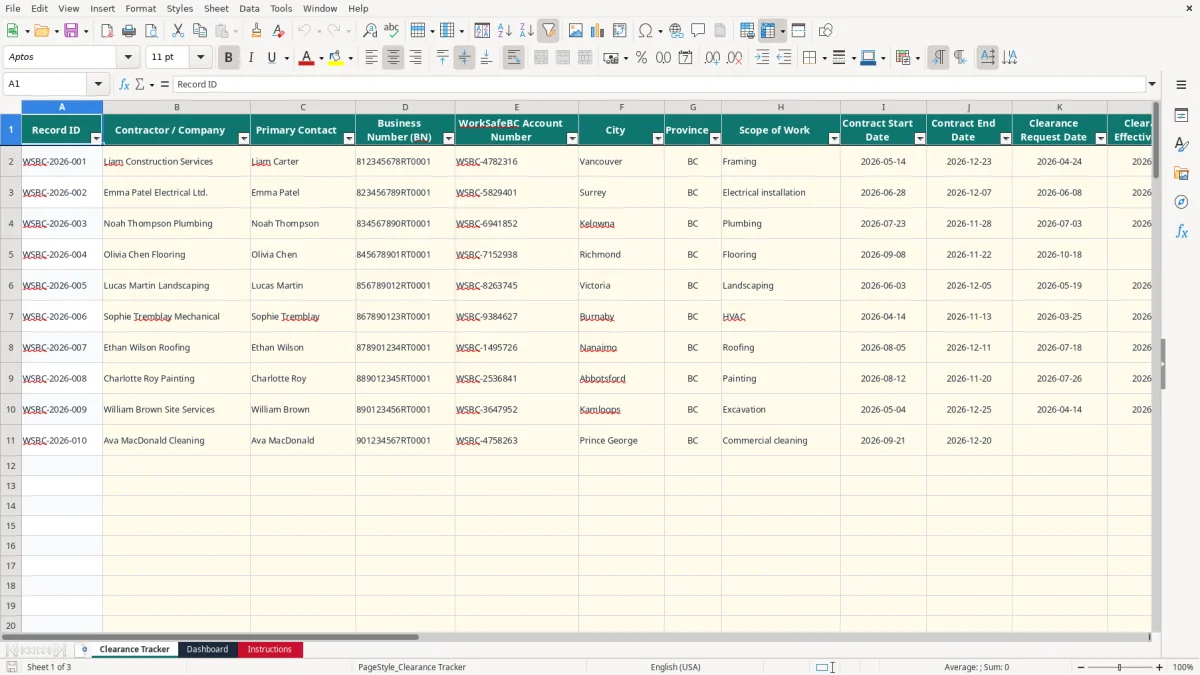
This WorkSafeBC clearance Excel spreadsheet records contractor identities, BN and WorkSafeBC account numbers, project dates, clearance requests, effective and expiry dates, contract values, statuses and verification notes. It also calculates days until expiry and flags records that need attention.
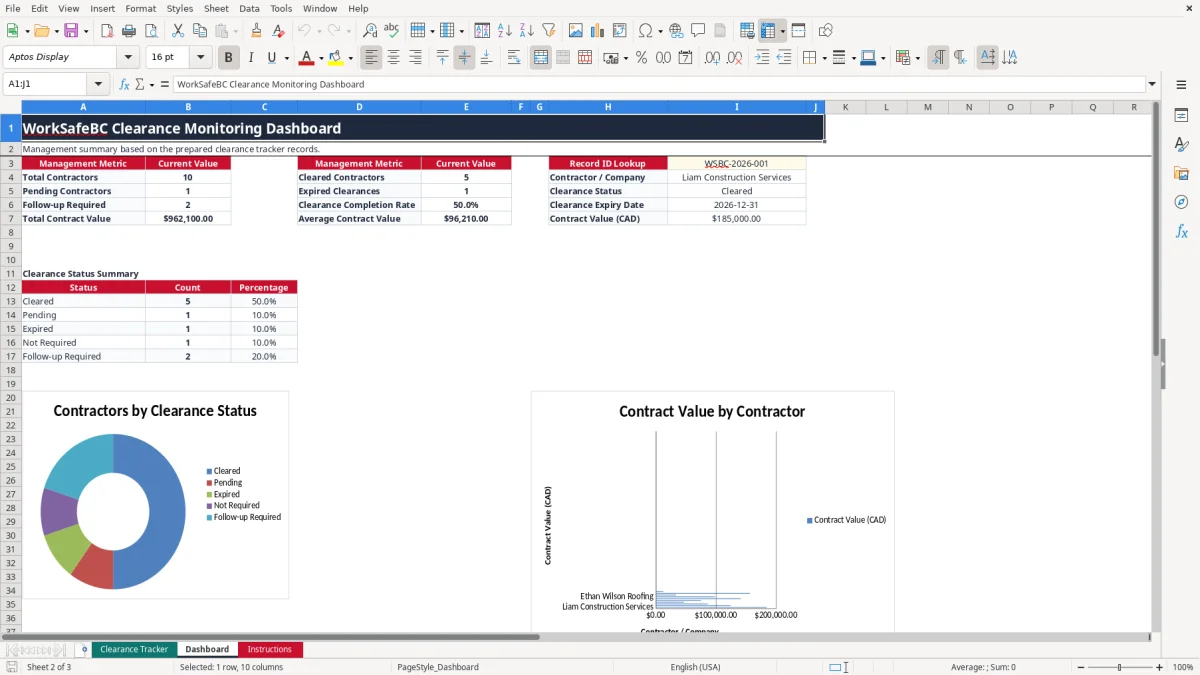
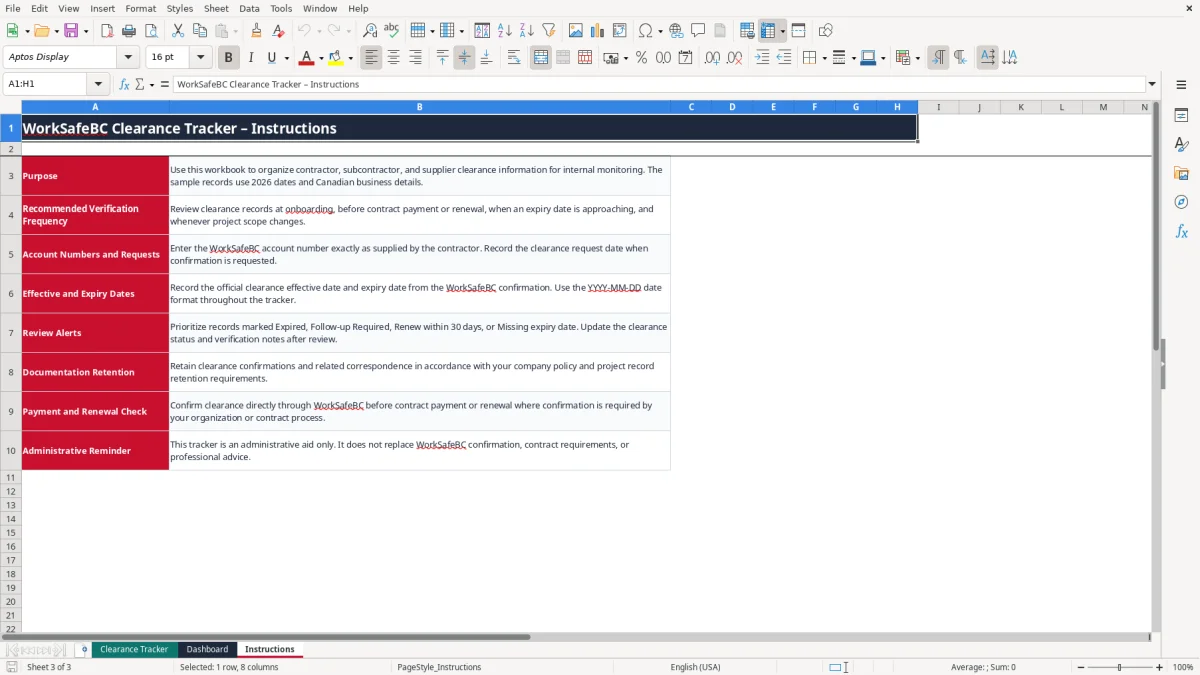
The workbook contains three sheets: Clearance Tracker, Dashboard and Instructions. Image 1 shows the 19-column tracker with prepared rows through row 101; image 2 shows management totals, status percentages, charts and a record lookup; the Instructions sheet explains the verification routine.
Use it as an internal administrative register for contractors, subcontractors and suppliers in British Columbia. It does not replace direct WorkSafeBC confirmation, project contract requirements or professional advice.
A WorkSafeBC clearance tracker is useful when a British Columbia general contractor, property manager or construction office must monitor several companies before allowing work or releasing payment. The person entering the records may be an office manager at a trades company, a project coordinator on a commercial build, or a bookkeeper maintaining the contractor file.
Image 1 shows the operational register. Each row holds one contractor or supplier, with identifying information in columns A to H, contract dates in I and J, clearance dates in K to M, value in N, status and alerts in O to Q, and verification details in R and S. The sample includes Liam Construction Services at $185,000, Emma Patel Electrical Ltd. at $124,500 and Noah Thompson Plumbing at $86,500.
At onboarding, enter the WorkSafeBC account number exactly as supplied and record when the clearance request was made. Before a progress payment, check the latest confirmation and update the effective date, expiry date, status and notes. A $50,000 subcontractor payment should not move through your approval process simply because an old row says Cleared.
The workbook has prepared operational rows from 12 through 101 for calculated results, while the sample records demonstrate the layout. You supply the contractor data and verification evidence; the Days Until Expiry and Expiry Alert columns are calculated. The auto-filter and frozen row 1 make the tracker practical during a weekly project review.
Image 2 gives a compact view of total contractors, cleared contractors, pending records, expired clearances, follow-up items and total contract value. For example, if a project has 40 contractors and 3 are marked Follow-up Required, the coordinator has a clear exception list rather than searching through every file.
WorkSafeBC clearance information is not the same as a generic vendor list. The record should identify the contractor and its WorkSafeBC account, connect the clearance to the work and contract period, and preserve the confirmation trail used by your organization. This workbook reflects that administrative need with separate fields for the BN, WorkSafeBC account number, scope of work, contract dates and verification notes.
Enter the account number exactly as provided by the contractor. Do not replace it with a shortened number or an internal vendor code. The BN field is also separate because a Canadian business number and a WorkSafeBC account number serve different administrative purposes.
Record the Clearance Request Date when you request confirmation, then enter the official Clearance Effective Date and Clearance Expiry Date from the WorkSafeBC response. The workbook uses yyyy-mm-dd formatting, such as 2026-04-29 to 2026-12-31. A request date alone does not prove that coverage or clearance is current.
For example, the sample Liam Construction Services record has a request date of 2026-04-24, an effective date of 2026-04-29 and an expiry date of 2026-12-31. The verification note says the official confirmation was retained in the contractor file. That combination is much stronger than entering only a green-looking status.
Days Until Expiry calculates the expiry date less TODAY(). Expiry Alert marks a record Expired when the calculated days are below zero and Renew within 30 days when the remaining days are 30 or fewer. It also returns Missing expiry date when no expiry date is entered, while a Not Required clearance status remains Not Required.
Use these outputs as an internal control, not as proof of a legal conclusion. The Instructions sheet specifically directs you to confirm clearance directly through WorkSafeBC before payment or renewal where your organization or contract requires it.
The most expensive mistake is treating a contractor register as evidence when it is only an outdated administrative record. I have seen offices carry a Cleared status forward after the expiry date, even though the contractor changed scope or the project continued for another six months. The payment may be released quickly, but correcting the file later can involve the project manager, accounts payable and the contractor.
A row with an effective date of 2026-04-29 and an expiry date of 2026-05-29 becomes a problem on 2026-05-30. If the status is left as Cleared, the manual label conflicts with the calculated alert. This workbook is designed to expose that conflict through Days Until Expiry and Expiry Alert, but only if you enter the official expiry date and leave the formulas intact.
A missing expiry date is another common failure. The dashboard can count a contractor, yet management cannot tell whether the record is current. The alert specifically returns Missing expiry date so the coordinator can obtain the confirmation instead of assuming that a blank means unlimited validity.
An office manager may approve a $25,000 progress payment from an invoice folder while the clearance evidence sits in an email. A better control is to review records marked Expired or Follow-up Required before the payment run and document the action in Verification Notes. The sample plumbing record is marked Follow-up Required because renewal documentation was requested before the next progress payment.
Do not type names inconsistently in Last Verified By. The list contains Jordan Lee, Priya Singh, Alex Morgan and Taylor Chen; using the drop-down prevents entries such as Jordan, J. Lee and Jordan Lee from becoming three apparent reviewers. Similarly, do not create a new status such as Waiting, because the Dashboard counts only the five supplied status values.
A contractor originally hired for $10,000 of minor repairs may later receive a $90,000 structural scope. The old row still identifies the same company, but the project risk and contract record have changed. Update the scope, dates, value, status and notes, and retain the related confirmation according to your company policy.
The spreadsheet works best when it is attached to an existing event rather than treated as a separate administrative project. Set a fixed review before the weekly payment approval meeting and a second review whenever a new contractor is onboarded. A 20-minute Friday review of 30 rows is more reliable than a two-hour search at month-end.
Keep the original confirmation in the contractor’s file and use the spreadsheet as the index. For example, if the dashboard shows 18 contractors and 2 expired clearances, assign each exception to a named person and record the response rather than simply changing Expired to Cleared.
Do not paste over columns P and Q. Their formulas run from rows 12 through 101 and use TODAY(), so the displayed number of days changes as the calendar advances. Enter dates as real Excel dates in yyyy-mm-dd format; text that looks like a date may not calculate correctly.
Use the supplied validation lists for Province, Clearance Status and Last Verified By. The template is prepared for 90 calculated rows, not an unlimited database. Once you regularly exceed row 101, need multiple projects, document attachments, approval history or user permissions, move to a contractor-management or accounting system and retain this workbook as an export or transition record.