
WorkSafeBC Clearance Excel Template – Free (2026)
0
Free download
Track Québec CNESST payroll remittances, assessable wages, rates, adjustments, due dates, payment status and outstanding amounts in Excel.
Download template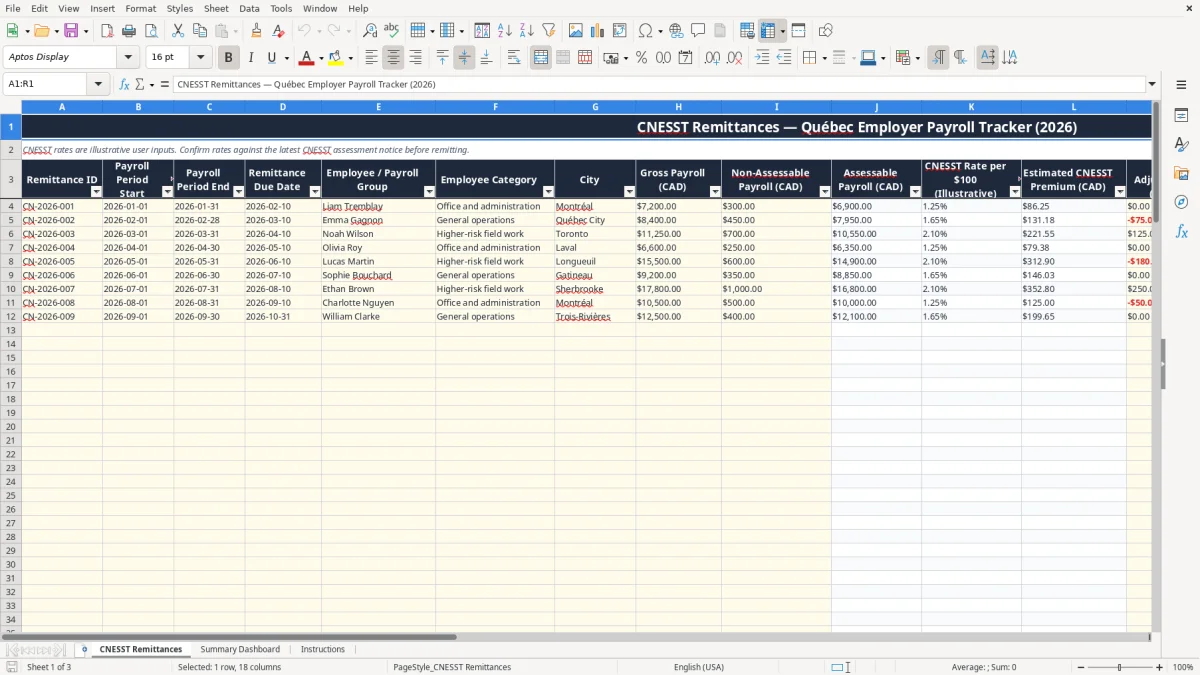
This CNESST remittance Excel template tracks Québec employer payroll periods, assessable payroll, illustrative rates, estimated premiums, adjustments, amounts due, payment dates and overdue days. It includes a detailed CNESST Remittances sheet for up to 100 prepared entries, a Summary Dashboard with formulas and charts, and an Instructions sheet.
Enter your payroll information in the editable cells, then review the calculated assessable payroll, premium, total due and payment status. The workbook contains sample 2026 records for Montréal, Québec City and Toronto; replace them with your own records and confirm every rate against the employer’s current CNESST assessment documentation.
A payroll clerk at a Québec construction company may open this file after every payroll run, while an office manager at a four-employee plumbing business may update it monthly. The detailed sheet is designed for remittance-level tracking: one row records a payroll period, its due date, the applicable category and the payment result.
For example, a January row could show $7,200 of gross payroll and $300 of non-assessable payroll. The formula calculates $6,900 of assessable payroll. If the category rate is 1.25 per $100, the estimated premium is $86.25, before any prior adjustment.
The register suits a bookkeeper who needs to compare payroll support with the amount prepared for payment. Columns H and I hold the user’s payroll inputs; columns J, L and N are calculated outputs. Column R gives you a place to explain an adjustment, confirmation number or classification question.
The sample records demonstrate different situations: a Montréal office employee, a Québec City general-operations entry and a higher-risk field-work entry. They are populated examples, not instructions to use those categories or rates for your own employer.
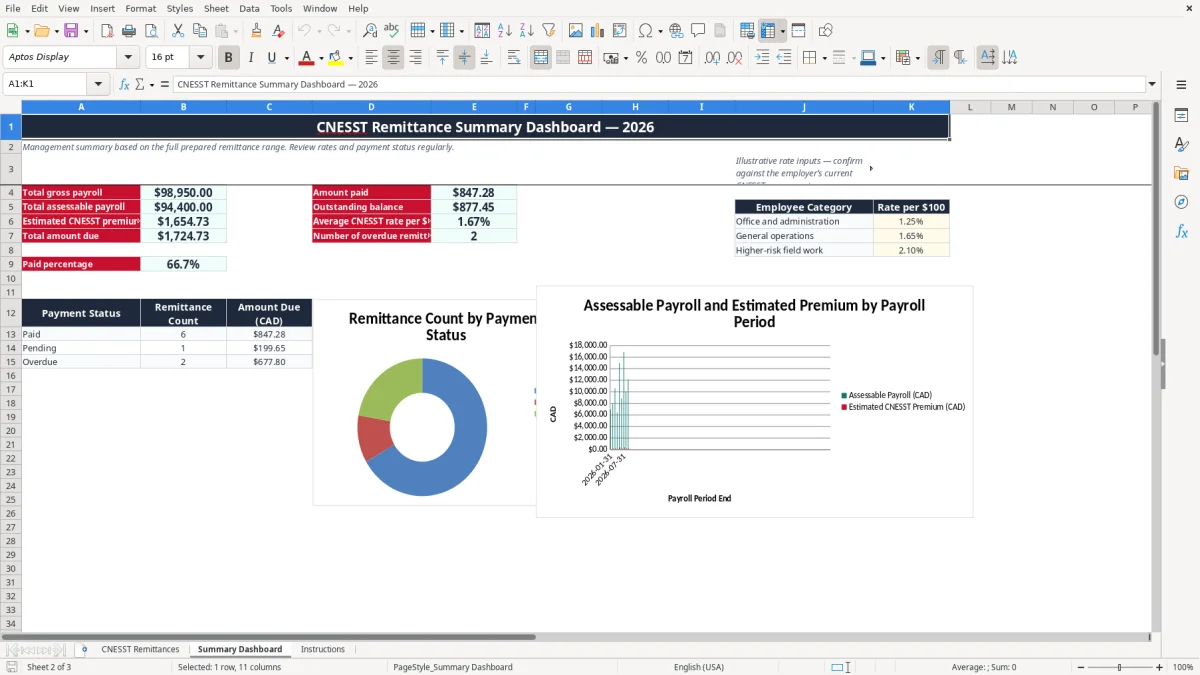
Summary Dashboard brings the 100-row prepared range into a management view. It displays total gross payroll, total assessable payroll, estimated premiums, total amount due, amount paid, outstanding balance, average rate, overdue count and paid percentage.
This is particularly useful when the person approving payments is not the person entering payroll. Rather than inspecting every row, the owner or treasurer can first see whether the outstanding balance is $0, $2,000 or $20,000, then filter the detailed register for the supporting entries.
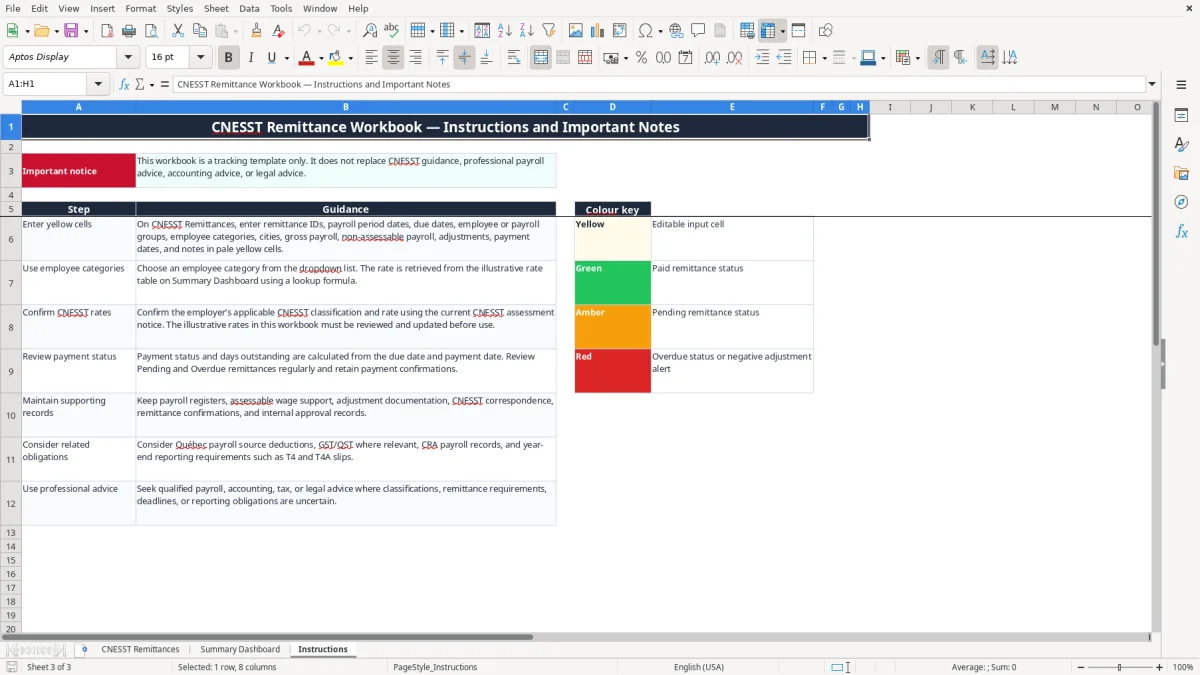
CNESST premiums are tied to the employer’s Québec classification and assessable remuneration. The workbook therefore labels its rates illustrative and places them in Summary Dashboard cells J6:K8: 1.25 for Office and administration, 1.65 for General operations and 2.10 for Higher-risk field work. Confirm the employer’s current assessment notice before using a rate for a remittance.
The calculation is transparent: assessable payroll equals gross payroll less non-assessable payroll, with a minimum of $0. A rate of 1.65 per $100 applied to $7,950 of assessable payroll gives $131.18 when calculated as $7,950 × 1.65 ÷ 100. The workbook then adds the prior adjustment in column M.
Québec employers should retain payroll registers, wage calculations, classification correspondence, adjustment support and payment confirmations. The Instructions sheet specifically points you to CNESST documentation and related Québec payroll obligations. It also reminds you to consider source deductions, CRA payroll records and year-end T4 and T4A reporting.
This workbook does not determine the official CNESST assessment, calculate Québec source deductions or replace an employer notice. It is a tracking and estimating tool. Treat the rate table as editable reference data, not as a legal rate schedule.
CNESST remittances are separate from CPP, EI and income-tax source deductions administered through the CRA. They are also separate from GST and QST collected on taxable sales. A payroll run can create several obligations, so keep this register connected to the payroll file and payment confirmation rather than treating its total as the entire payroll liability.
The most expensive errors I see are not usually arithmetic errors. They are classification and timing errors: an office employee is assigned a field-work category, a prior credit is omitted, or the payment date is never entered. A $75 overpayment adjustment in the wrong direction changes the amount due immediately, even when the payroll total is correct.
Consider a row with $11,250 gross payroll, $700 non-assessable payroll and a 2.10 rate. The assessable amount is $10,550 and the estimated premium is $221.55. Add a $125 prior adjustment and the total becomes $346.55. If that adjustment is actually a credit, entering positive $125 instead of negative $125 creates a $250 difference.
The status formula marks a row Paid when column O contains a payment date. Otherwise, it compares TODAY() with the due date and returns Pending or Overdue. A payment made on 2026-03-12 against a 2026-03-10 due date shows two days outstanding, while a blank payment date keeps the row open and may continue to age.
Do not type over formula columns J, K, L, N, P or Q. Doing so removes the calculation that turns raw payroll inputs into the control information shown on the dashboard. If a result looks wrong, first inspect the category, rate table, dates and adjustment sign.
The workbook starts with three sample records and formulas prepared through row 103, plus a formula area in row 104 for several calculated columns. Delete or replace sample details before relying on totals. Otherwise, a dashboard showing $26,850 of gross payroll could include demonstration entries rather than your actual payroll.
Finally, an overdue flag is a control signal, not proof that CNESST has assessed a penalty. Preserve the payment confirmation and investigate the underlying due date before changing a record.
The easiest routine is to update the register immediately after payroll is approved, not at year-end. Give one person responsibility for entering the period, another for checking the rate and amount when practical, and make the dashboard review part of the payment-approval step.
Use the colour key on Instructions as a visual shortcut: yellow cells are editable inputs, green indicates paid status, amber indicates pending status and red identifies overdue status or a negative-adjustment alert. The dashboard’s paid percentage is based on rows with a Paid status, so incomplete payment dates reduce that percentage.
This workbook is a good fit for a small employer with a manageable number of monthly payroll groups and one person maintaining the file. It is less suitable when several users edit simultaneously, payroll changes daily, approvals require an audit trail, or the register has grown beyond the prepared 100-entry range.
At that point, move the source data into a payroll or accounting system and keep an exported reconciliation. Until then, save a dated copy after each completed remittance cycle; for example, retain a file named CNESST_2026-03-31.xlsx alongside the payment confirmation and payroll register.