
Restaurant Tip Pooling Excel – Free Template (2026)
1
Free download
Calculate estimated Canadian statutory holiday pay by employee, province, eligibility, wages worked and premium rate with an Excel workbook.
Download template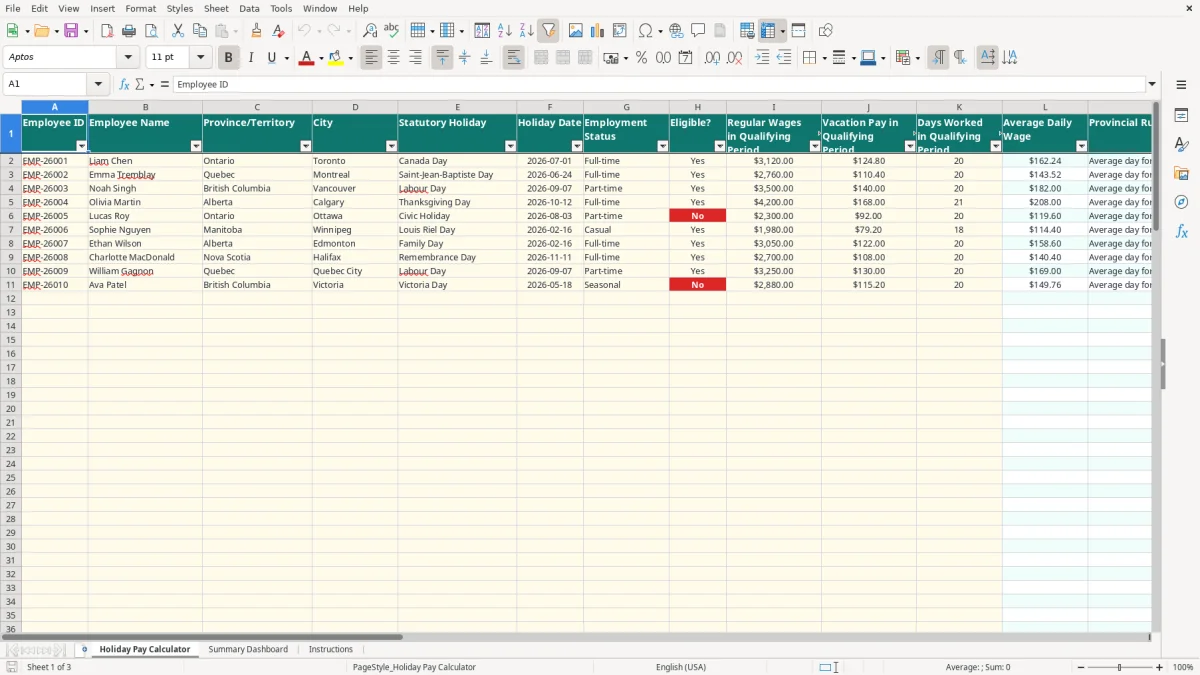
This statutory holiday pay calculator Excel template estimates holiday pay for up to 100 employee-holiday rows. It records province, holiday date, qualifying-period wages, eligibility, work performed on the holiday, premium pay and total estimated pay, with a dashboard summarizing the results.
Use it during a payroll run or before a 2026 statutory holiday. The Holiday Pay Calculator sheet contains the entry and calculation columns, Summary Dashboard shows totals and charts, and Instructions explains the workflow and province reference list.
A payroll clerk at a landscaping company may use this workbook before Canada Day, Labour Day or Thanksgiving to check each employee's estimate. An office manager with four employees can enter one row per person and holiday, then compare the calculated amounts before the payroll run rather than rebuilding the calculation in separate notes.
The workbook is also practical for a bookkeeper supporting several small employers. A contractor with four employees might enter $3,120 of regular wages, $124.80 of vacation pay and 20 qualifying-period days. The sheet calculates ($3,120 + $124.80) ÷ 20 = $162.24 as the average daily wage; if eligibility is Yes and the holiday was not worked, the estimated holiday pay before adjustments is $162.24.
Do not combine a whole team into one line. Emma in Quebec and Liam in Ontario need separate rows because province, holiday, eligibility and qualifying-period records can differ. The populated examples show this approach: Liam's 2026-07-01 Canada Day row and Emma's 2026-06-24 Saint-Jean-Baptiste Day row each carry their own inputs.
Image 1 shows the Holiday Pay Calculator layout, including employee details at the left, wage inputs in the centre, calculated amounts, and Notes at the right. The prepared rows run from row 2 through row 101, while the sample employees are illustrative entries rather than a payroll record.
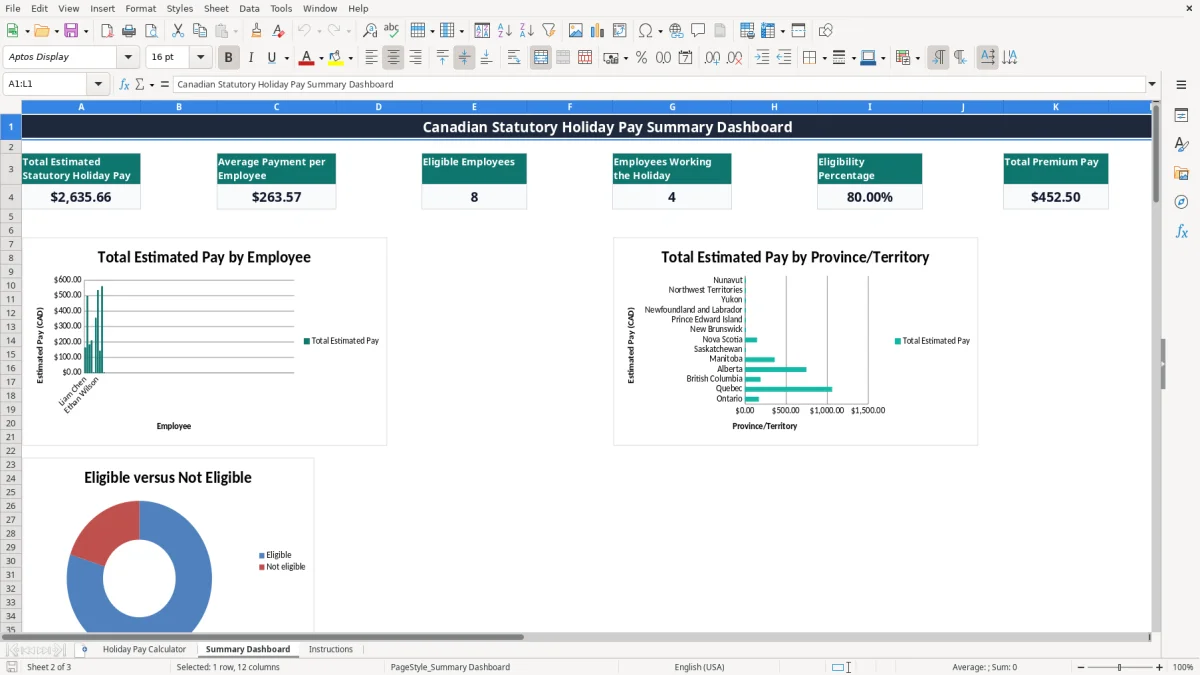
For a 20-person workforce, the Summary Dashboard gives management a quick estimate of total liability, average payment, employees marked eligible, employees marked as working the holiday and total premium pay. Image 2 shows these indicators, employee and province summaries, eligibility counts and three charts.
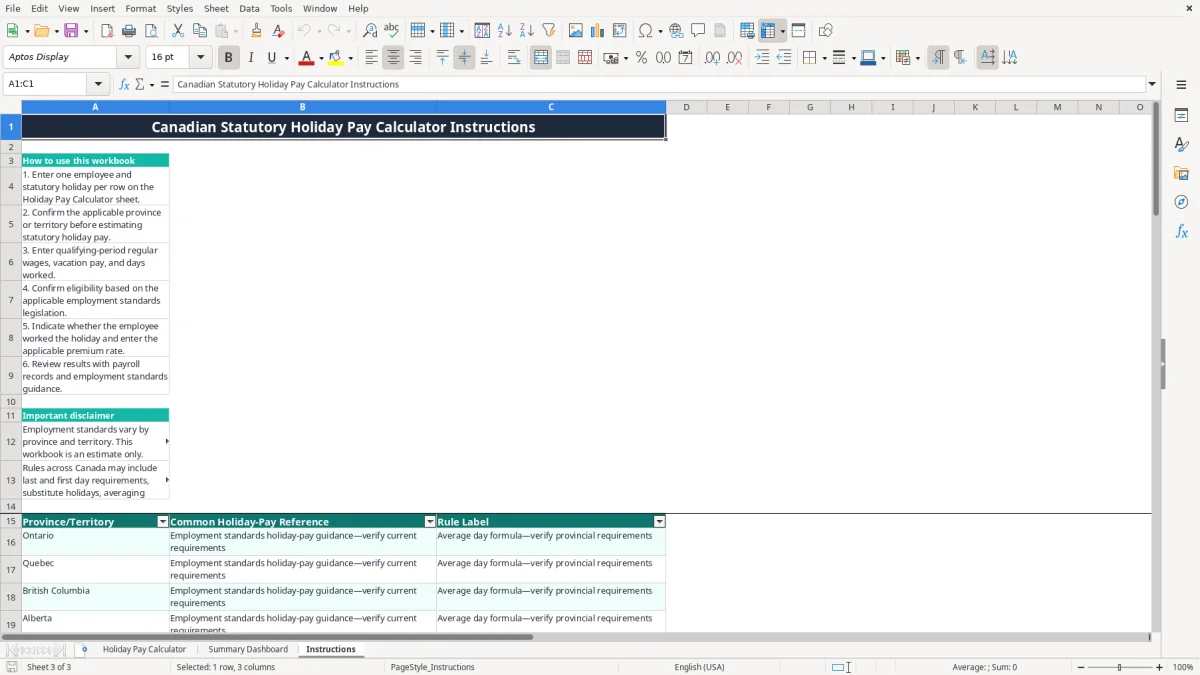
Statutory holiday pay is governed mainly by provincial and territorial employment standards, not by one Canada-wide formula. Ontario, Quebec, British Columbia, Alberta, Manitoba, Saskatchewan, Nova Scotia, New Brunswick, Prince Edward Island, Newfoundland and Labrador, Yukon and the Northwest Territories appear in the Instructions reference list, but the workbook's labels are not legal advice.
The file deliberately uses the phrase Average day formula—verify provincial requirements. Its calculation is transparent: regular wages plus vacation pay, divided by days worked in the qualifying period. For example, $2,760 + $110.40 divided by 20 days gives $143.52. That number is an estimate until you confirm which wages, days and exclusions the applicable legislation includes.
Ontario's Employment Standards Act, 2000, Quebec's Act respecting labour standards and the employment standards legislation in British Columbia are not interchangeable. A public holiday may involve eligibility conditions, last-and-first-day requirements, a substitute holiday, special treatment for certain industries or an averaging agreement.
The Instructions sheet specifically tells you to confirm the province or territory and eligibility before relying on the estimate. It also warns that collective agreements, employment contracts, exclusions and qualifying-period definitions may affect the result. Those checks matter more than a neat spreadsheet total.
When Worked Holiday? is Yes, enter the actual wages for the holiday worked and the applicable premium rate. The formula calculates premium pay as wages for holiday worked multiplied by premium rate. At $235 and 50%, the premium is $117.50; total estimated pay then combines holiday pay before adjustments, the entered holiday wages and that premium.
Do not assume 50% is correct merely because it appears in the sample rows. It is an input in this workbook, not a universal Canadian rate. Confirm the current 2026 requirement for the province, employee category and work arrangement before finalizing payroll.
The most expensive error is usually not an Excel error; it is a wrong eligibility decision. A manager may mark a casual employee Yes because the person worked recently, while the applicable employment standards rule requires a specific qualifying pattern. On a $180 estimated holiday payment, one mistake may seem small, but 12 employees creates a $2,160 payroll correction before administrative time.
Payroll records often contain regular wages but omit vacation pay or use calendar days instead of qualifying-period days. If a worker has $4,000 of regular wages, $160 of vacation pay and 20 qualifying days, the estimate is $208. Excluding the $160 reduces the result to $200, a difference of $8 per employee; across 25 employees, that is $200.
Another frequent mistake is entering hours worked in Days Worked in Qualifying Period. The formula divides by that field, so entering 160 hours instead of 20 days produces $26 rather than $208. The result looks tidy but is unusable.
For a worked holiday, users sometimes enter the full amount in Wages for Holiday Worked and also manually add the premium to Holiday Pay Before Adjustments. This workbook already calculates Premium Pay separately as wages multiplied by the entered rate. With $300 of holiday wages and a 50% rate, the premium is $150; manually adding another $150 overstates the total.
Image 1 makes the distinction visible: N is Holiday Pay Before Adjustments, P is Wages for Holiday Worked, Q is Premium Rate, R is Premium Pay and S is Total Estimated Pay. Keep the source figures in the input columns and leave formula columns unchanged.
The dashboard's 2026 figures are only as reliable as the rows beneath them. A blank employee name with stray amounts, a No eligibility choice entered as text with a different spelling, or a zero qualifying-day value can produce an understated or incomplete total. Check the row-level notes and reconcile the dashboard to the payroll register before payment.
The easiest way to keep this workbook alive is to attach it to an existing payroll event. Three to five business days before a statutory holiday, copy the prior working file, enter the holiday date and review changes in employees, province, status and eligibility. After payroll is posted, add a note for any substitute holiday or manual adjustment.
The sheet has freeze panes at A2 and an auto-filter across rows 1 to 101, which makes this review practical for a 30-person shop. The four controlled lists also help prevent entries such as Full time, Yes - eligible or a province name that does not match the reference list.
This workbook is suitable for a small team with up to 100 employee-holiday rows and a straightforward review process. Move to payroll software when you are managing several hundred rows, multiple pay groups, union rules, retroactive changes or a requirement for audit trails and employee self-service.
Keep the file access-controlled because employee names and pay data are personal information. Save a dated copy after each payroll review, restrict editing of formula columns, and retain the source payroll report with the workbook. That habit is more valuable than adding extra formulas that the file does not currently contain.