
Maternity Top-Up Excel Template – Free (2026)
2
Free download
Estimate Canada Child Benefit amounts for up to 100 household scenarios using AFNI, child ages, custody status and editable assumptions.
Download template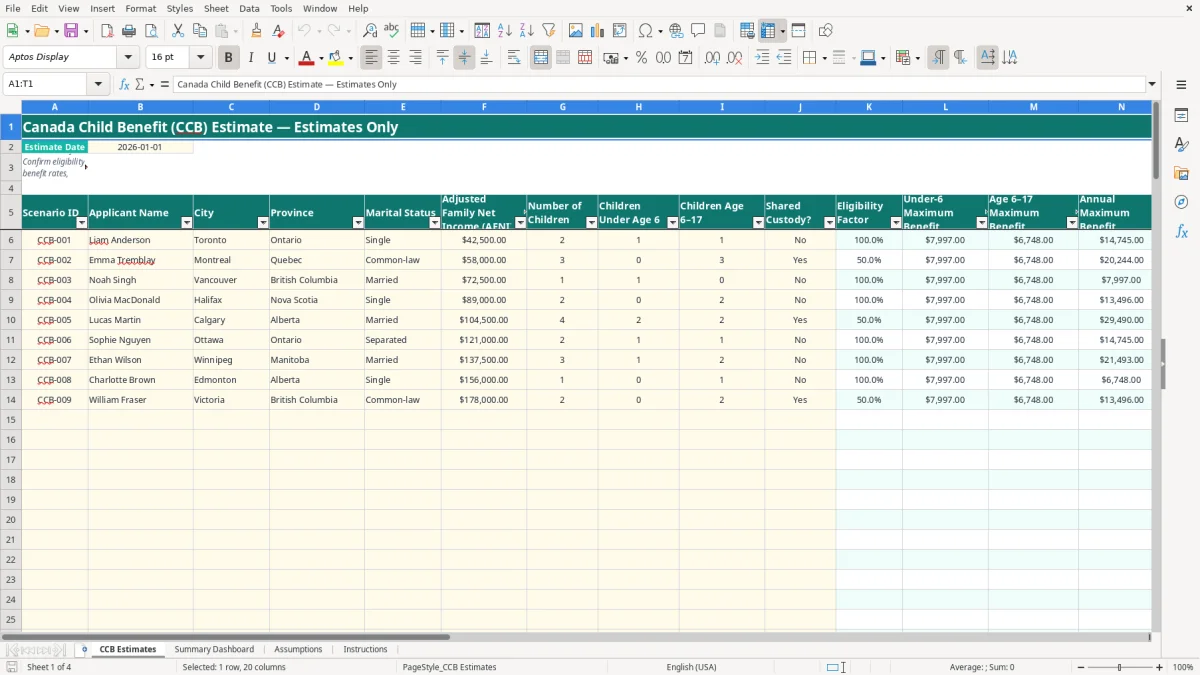
This Canada Child Benefit estimate Excel spreadsheet calculates illustrative annual and monthly CCB amounts for up to 100 household scenarios. It contains input fields for adjusted family net income, child ages, province, marital status and shared custody, with calculated outputs and review flags.
The CCB Estimates sheet separates user inputs from formulas, while the Summary Dashboard shows totals, averages, scenario counts and charts. The Assumptions and Instructions sheets explain the editable figures and the limits of the estimate.
A parent planning a household budget, a bookkeeper supporting a family-owned business owner or a community worker helping clients with benefit planning may need a quick CCB estimate before the official payment information is available. The workbook is designed for comparing household scenarios, not for replacing a CRA determination.
Image 1 shows the CCB Estimates sheet. The input columns run from Scenario ID through Shared Custody?, followed by formula-driven columns for the eligibility factor, age-based maximums, phase-out values and estimated payments. Rows 6 to 105 provide 100 prepared scenarios, so you can compare households without copying formulas into a new range.
Suppose a household enters AFNI of $42,500, two children, one under age 6 and one aged 6–17, with no shared custody. The sheet uses the illustrative maximums on Assumptions, calculates an annual result in column Q and divides it by 12 in column R. That monthly figure can then be compared with rent, food and childcare costs.
A second scenario might use AFNI of $58,000, three children aged 6–17 and shared custody marked Yes. The workbook applies the illustrative 0.5 factor and places a review message beside the result. That is useful for identifying a case that needs closer attention before someone builds it into a cash-flow plan.
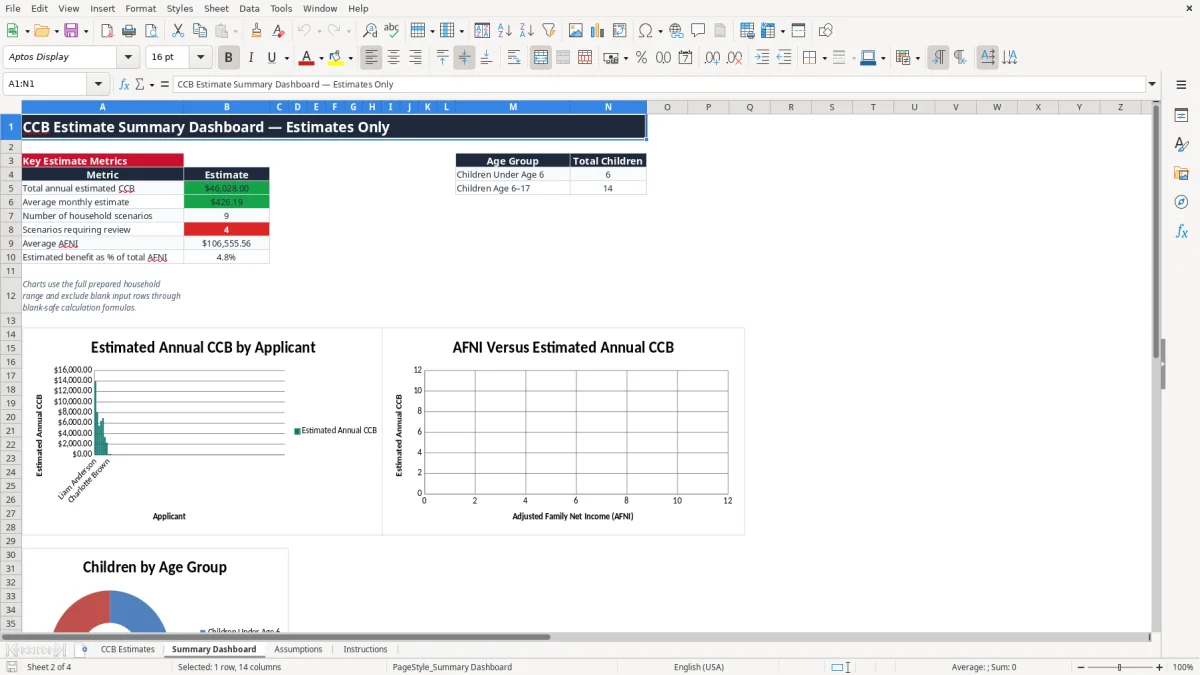
Image 2 shows the Summary Dashboard. It summarizes the populated scenario range, including total annual estimates, average monthly estimates, average AFNI and the number of scenarios requiring review. Its age-group totals and three charts help you see the effect of changing child ages or income across several examples.
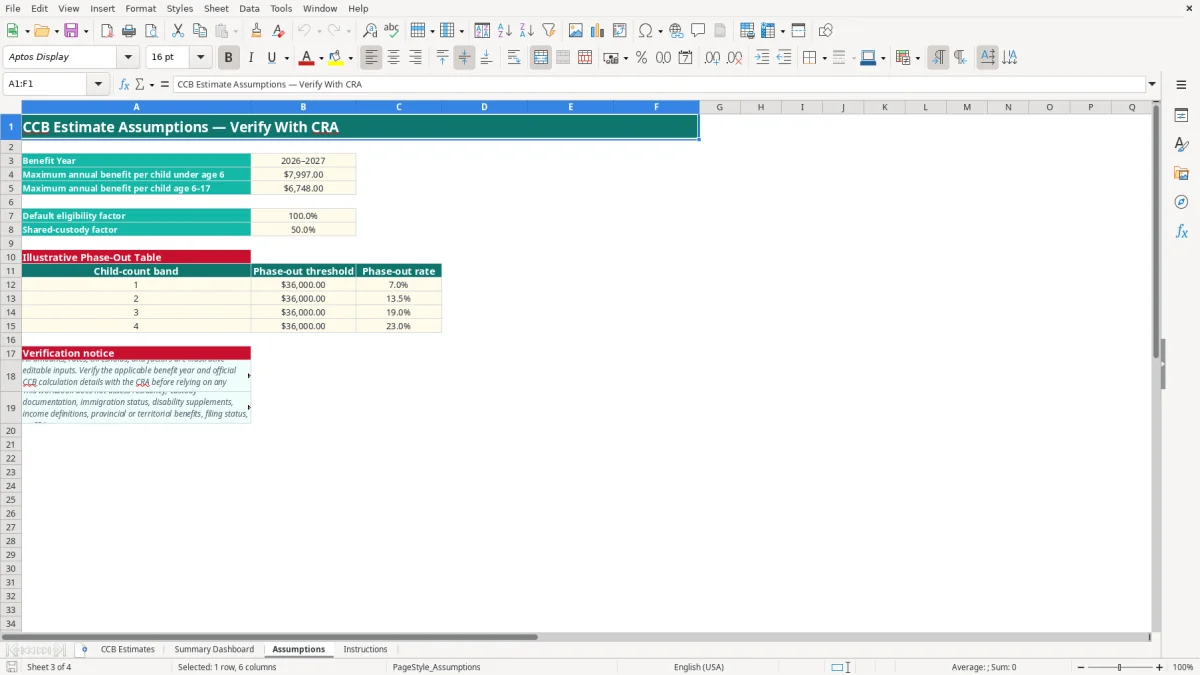
The CRA calculates the Canada Child Benefit using official eligibility rules, the relevant benefit year and information from tax filings. This workbook is deliberately labelled estimates only: its Assumptions sheet contains illustrative values, including $7,997 for a child under age 6, $6,748 for a child aged 6–17, a $36,000 phase-out threshold and rates from 7% to 23%. Verify all of these figures before use.
Image 3 shows the Assumptions sheet. It lists the benefit year as 2026–2027, the two age-based maximums, a default eligibility factor of 1, a shared-custody factor of 0.5 and four child-count bands. The formulas use VLOOKUP with approximate matching to retrieve the threshold and rate for the number of children.
The AFNI field is not simply a monthly paycheque amount. Use the appropriate family income information for the benefit year and confirm the official definition with the CRA. In practice, a $42,500 AFNI scenario and a $58,000 AFNI scenario may produce different results because the formula reduces the illustrative maximum after the threshold, rather than applying a flat payment.
Eligibility can also involve residency, custody, immigration status, marital-status changes and supporting records. The workbook does not calculate the GST/HST Credit, Child Disability Benefit or provincial and territorial programmes. Those benefits must be checked separately, and the CRA remains the source for official payment amounts.
The workbook applies half of the calculated amount when Shared Custody? is Yes, but this is only an illustrative factor. Do not treat the 50% result as proof of entitlement. Confirm the custody arrangement, dates and documentation with the CRA before using the amount in a benefits application or financial commitment.
The most expensive error is often entering the wrong income basis. A user may type $4,000 of monthly employment income into AFNI instead of the applicable annual family amount, producing a calculation that is off by a factor of 12. In a budget built around an estimated $600 monthly benefit, that mistake can create a $7,200 annual shortfall.
Image 1 makes the age split visible, but users still sometimes enter two children in the total field and leave both age columns at zero. The formula then calculates no age-based maximum. The opposite error—counting the same child in both age groups—can overstate the illustrative maximum by one full child benefit.
Shared custody is another practical problem. Marking No when the arrangement is actually shared may overstate the result because the sheet uses the default factor of 1. Marking Yes without confirming the arrangement may understate it by 50%. The correct response is not to override the formula; it is to investigate the CRA treatment and retain the supporting facts.
Column S displays Review eligibility and CRA guidance when AFNI exceeds $150,000 or shared custody is marked Yes. Treat that message as a control, not as a conclusion. For example, a $160,000 scenario may still display an estimate because the formula calculates a non-negative result, but the flag tells you that the output should not be used without verification.
Another common failure is changing an assumption and forgetting that every populated row uses it. If the illustrative under-six maximum changes from $7,997 to $8,200, all affected scenarios recalculate. Keep a dated copy of the assumptions and do not mix estimates from different benefit years in one comparison.
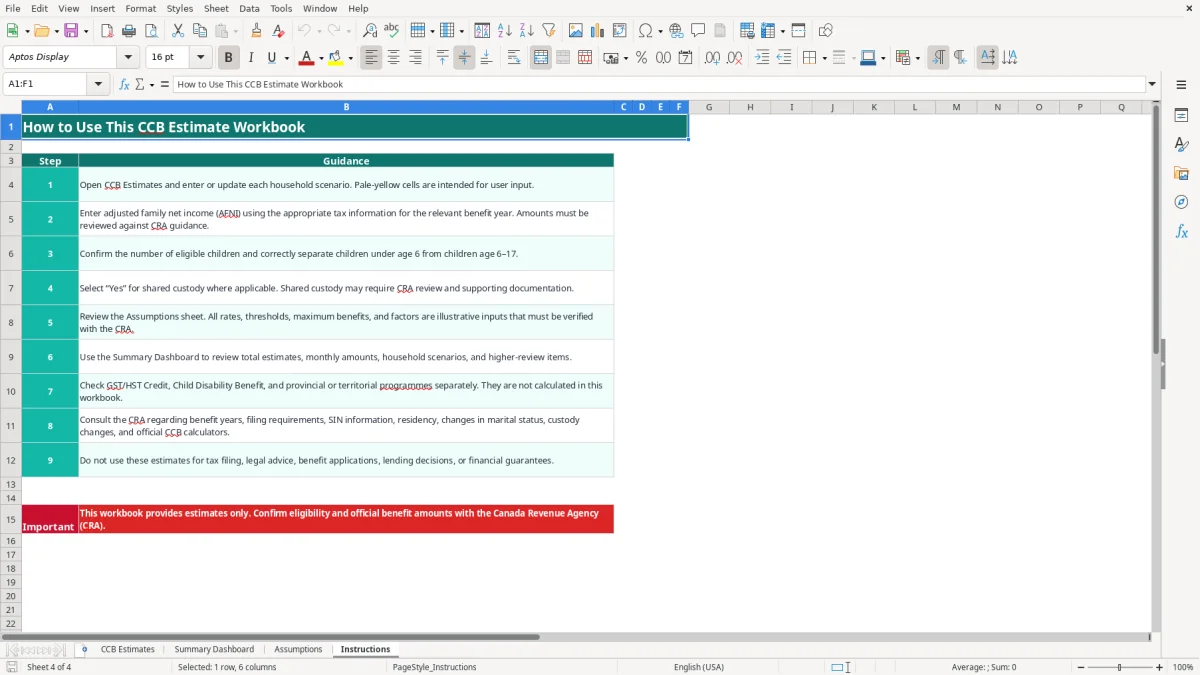
Use the workbook at a fixed point in your household-planning or client-support routine. A practical choice is the first week after the annual tax information is available, then a review whenever income, marital status, the number of children or custody arrangements change. Do not edit calculated columns K to S; update the input fields and let the formulas recalculate.
For example, if three household scenarios show monthly estimates of $400, $550 and $700, the dashboard average is $550. That average may help compare planning cases, but it should not be treated as a guaranteed payment for any one household.
This file is suitable for a prepared range of 100 scenarios. Move to a controlled case-management or benefits system when you need audit trails, document storage, user permissions, automated CRA data, frequent changes across many staff members or more than 100 active cases. Until then, protect names and income information, restrict access to the file and delete obsolete copies securely.