
Maternity Top-Up Excel Template – Free (2026)
2
Free download
Track OTB components, CRA payments, variances and statuses in a 100-row Excel spreadsheet for Ontario recipients.
Download template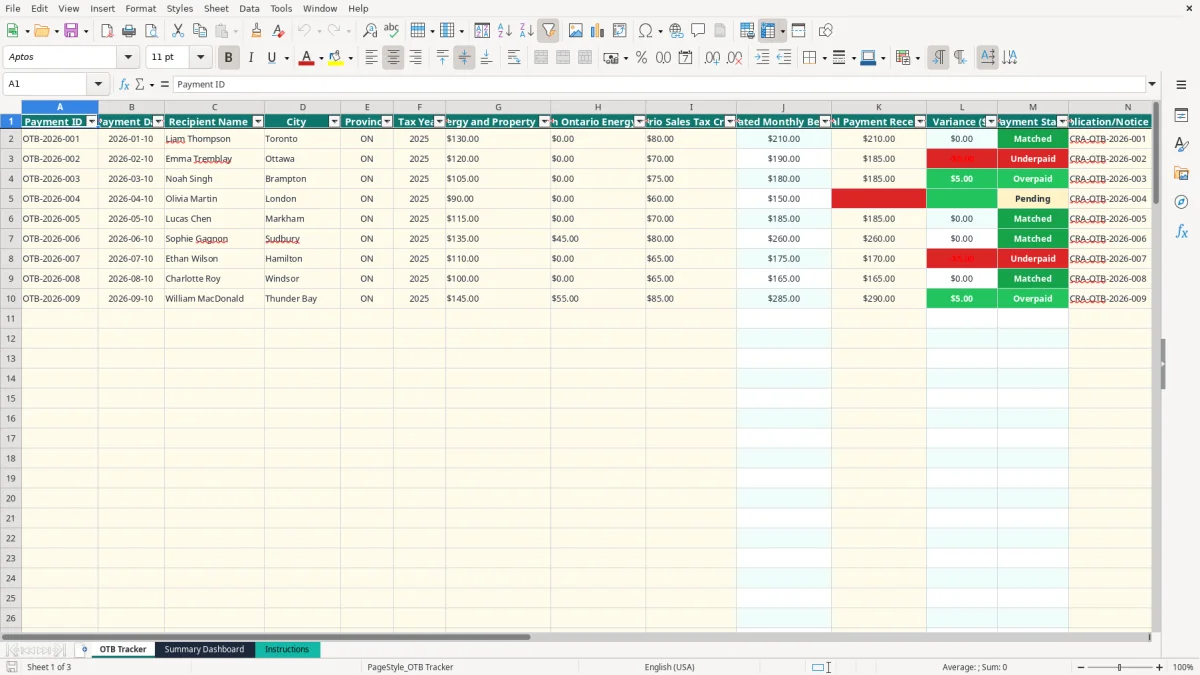
This Ontario Trillium Benefit Excel spreadsheet records payment dates, recipient details, tax year, three benefit components, estimated monthly benefit, actual CRA payment, variance and payment status. It is designed for personal tracking and reconciliation, not for calculating official entitlement.
The workbook contains an OTB Tracker, a Summary Dashboard and an Instructions sheet. The tracker provides 100 prepared rows, while the dashboard summarizes estimated benefits, actual payments, variances, match rates and payment statuses.
An Ontario individual or family usually opens this spreadsheet when a CRA benefit notice arrives or a monthly payment appears in a bank account. It is useful when the amount needs to be compared with the components shown on the notice, especially after a reassessment or a partial payment.
Suppose a Toronto recipient expects $130 from the Ontario Energy and Property Tax Credit and $80 from the Ontario Sales Tax Credit. The tracker calculates an estimated monthly benefit of $210. If the CRA deposit is $210, the variance is $0 and the status becomes Matched. If only $185 arrives, the variance is -$25 and the status becomes Underpaid.
The workbook is also practical for a family managing several recipients or tax years. Each row identifies the recipient, city and tax year, so Emma Tremblay's Ottawa payment does not get confused with Liam Thompson's Toronto record.
Image 1 shows the OTB Tracker with columns A to O, including the three component amounts, calculated totals, actual payment, reference and notes. The table has prepared rows through row 101 and freezes the header at row 1.
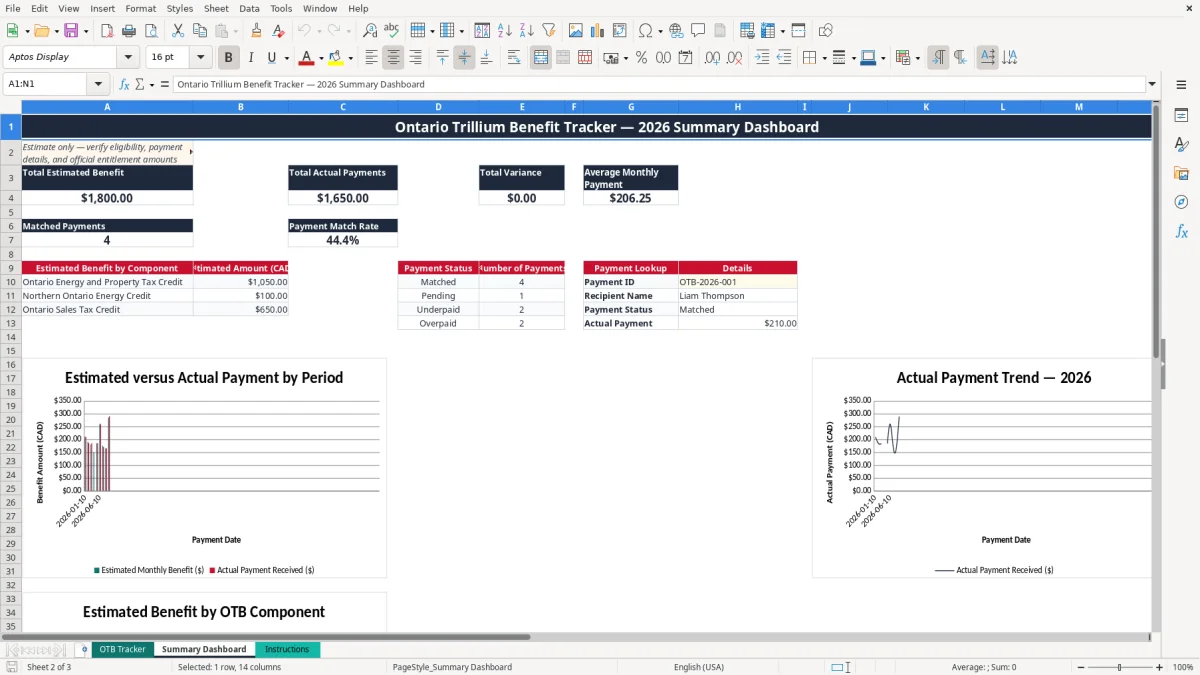
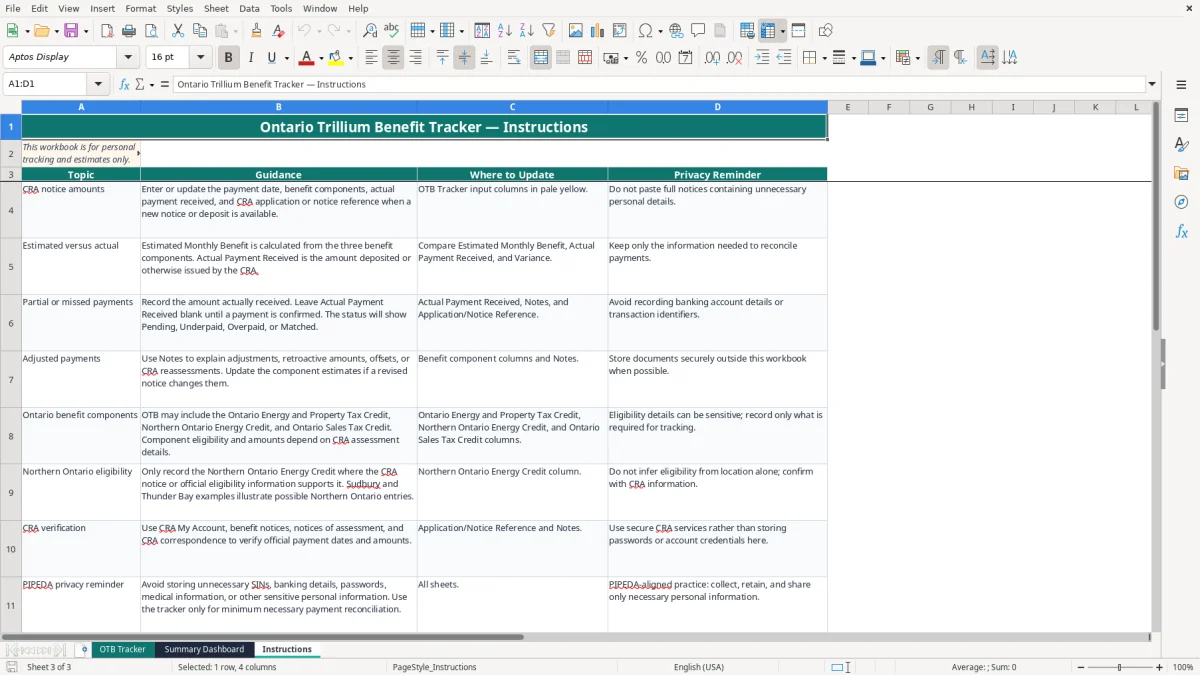
Image 2 shows the Summary Dashboard. It reports totals and match rates, lists component totals and status counts, provides a Payment Lookup area, and includes three charts based on tracker and dashboard ranges. Image 3 shows Instructions, including where to update pale-yellow input cells and how to handle privacy.
The Ontario Trillium Benefit is administered through the CRA and may include the Ontario Energy and Property Tax Credit, Northern Ontario Energy Credit and Ontario Sales Tax Credit. The workbook labels these three components, but it does not determine eligibility or official entitlement.
Verify dates and amounts against CRA My Account, a benefit notice, notice of assessment or CRA correspondence. For example, if a revised notice changes the components from $130, $0 and $80 to $115, $0 and $80, update the three component cells rather than manually changing the calculated total.
The Northern Ontario Energy Credit deserves particular care. Sudbury and Thunder Bay are examples of Northern Ontario locations, but you should not infer eligibility from city alone. Record an amount only when the CRA notice or official eligibility information supports it.
The Instructions sheet follows a minimum-necessary approach aligned with PIPEDA: do not store a SIN, banking details, passwords, medical information or full notices when those details are not needed for reconciliation. Keep supporting documents securely outside the workbook and share it only with authorized people.
This tracker is not a tax return, eligibility calculation or CRA record. It does not replace an official CRA calculation, and its sample amounts are illustrations rather than prescribed benefit rates. Use the reference and notes columns to identify the source of each entry.
The most common problem is comparing the wrong figures. A notice may show separate component amounts, while the bank deposit is one combined payment. If the components are $105, $0 and $75, the workbook calculates $180; entering a deposit of $185 produces a $5 variance and an Overpaid status.
Do not enter the expected amount as the actual payment. If the estimated benefit is $210 but only $185 is deposited, record $185 in Actual Payment Received. The formula reports -$25 and marks the row Underpaid, giving you a clear item to investigate instead of hiding the difference.
For a payment not yet confirmed, leave the actual amount blank. The status remains Pending. Entering $0 too early would turn an unconfirmed payment into a negative variance, which is operationally different from a missing deposit.
Another costly mistake is recording a full notice or unnecessary account identifiers in Notes. A tracker containing 12 monthly payments may be useful, but copying 12 complete notices creates far more personal information to protect than the reconciliation requires.
Finally, do not treat a calculated match as proof of entitlement. A $210 deposit matching $130 plus $80 confirms only that the entered figures agree. It does not confirm the CRA's underlying eligibility decision or prevent a later reassessment.
Choose one fixed review time, such as the day after the expected monthly deposit. Spend five minutes checking the bank record or CRA information, then update the matching row. For 12 monthly records, this routine creates a complete annual audit trail without rebuilding the file each time.
Use Payment ID values consistently, such as OTB-2026-001, OTB-2026-002 and OTB-2026-003. Keep dates in YYYY-MM-DD format and use one row per payment; do not overwrite an earlier payment to make the history look cleaner.
After each update, check Total Variance, Payment Match Rate and the status counts on Summary Dashboard. If five of six records are Matched and one is Pending, you have a focused follow-up list. The Payment Lookup area can retrieve a recipient, status or actual amount for a Payment ID already listed in the tracker.
When you need more than the prepared 100 rows, several recipients, automated CRA imports or detailed document storage, move to a protected accounting or case-management system. Keep this workbook as a small reconciliation tool, not as a repository for sensitive records.