
Canadian Condo Reserve Fund Excel Template
17
Free download
Tracks RESP contributions, CESG, CLB, room remaining, and beneficiary details in one Canadian worksheet set.
Download template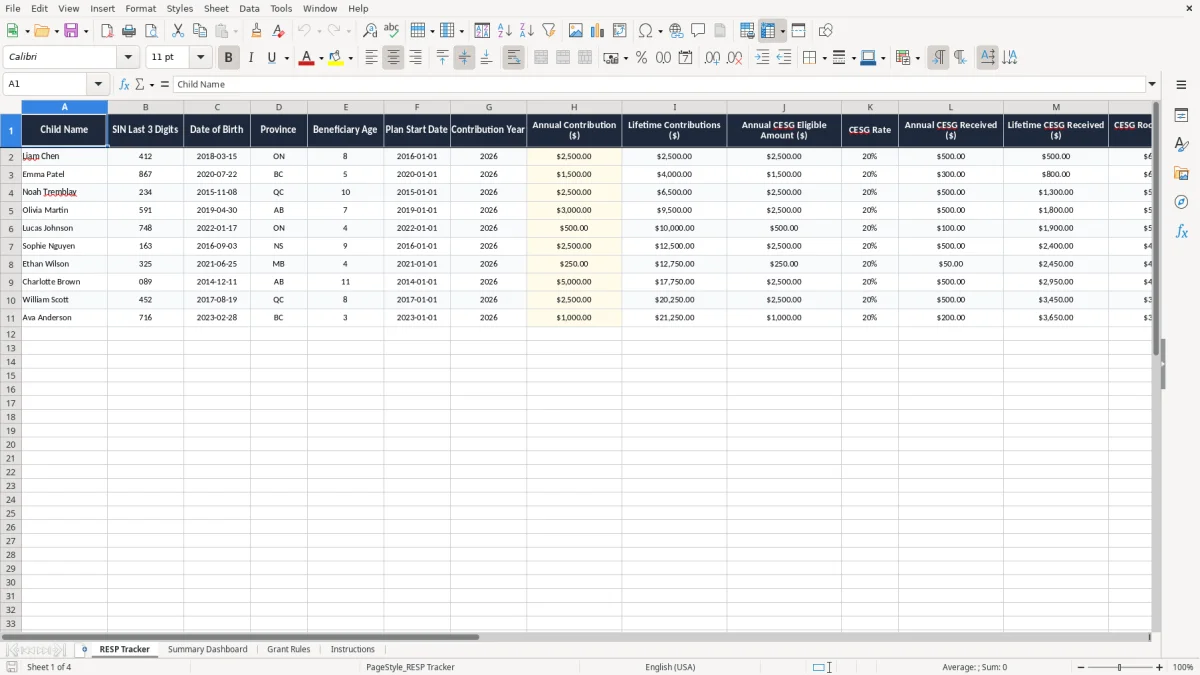
This RESP grant tracker Excel template helps you record contributions, CESG, CLB, and remaining grant room for each beneficiary in one place. It includes a tracking sheet, a summary dashboard, grant rules, and instructions.
Use it when you want a clean record of yearly deposits, grant eligibility, and lifetime totals for one child or several. The workbook also keeps the key identifiers and dates you need for practical family planning, without making you rebuild the file each month.
The template is set up for Canadian users who need to follow contribution patterns and watch the government grant amounts over time. It is simple enough for a parent, but structured enough for a bookkeeper or adviser helping a family manage an RESP.
This workbook is for parents, grandparents, and guardians who are putting money into an RESP and want to keep the grant side straight. It is also useful for a bookkeeper or financial planner who manages several family education files and needs a simple, repeatable record.
The RESP Tracker sheet (image 1) is laid out as a single row per beneficiary, with columns for child name, SIN last 3 digits, date of birth, province, plan start date, contribution year, and the grant fields. That means you can track one child with a $2,500 annual deposit or a family with three children making different deposits in the same year.
If you contribute $2,500 in a year, the sheet gives you room to track the annual CESG eligible amount and the CESG received. If you are managing two children, one at $2,500 and one at $500, the tracker makes the difference obvious instead of forcing you to compare statements by hand.
Most people do not forget the contribution itself. They forget the running totals, the grant room, and the date of the last deposit, which is exactly where an RESP file starts to drift. This template keeps those items in one line so you can see the pattern before a mistake turns into a missed grant year.
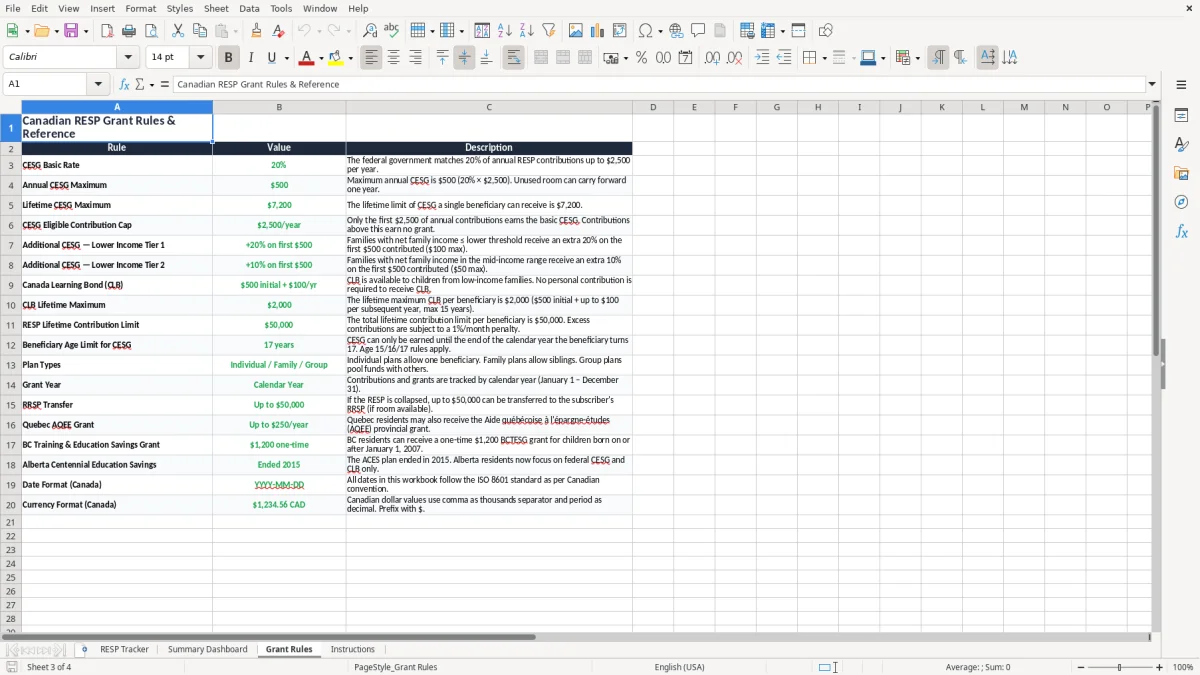
The key grant to track is the CESG, which is the Canada Education Savings Grant. The basic grant rate is 20% on the first $2,500 of annual contributions, so a $2,500 deposit can generate up to $500 of CESG for that year.
The tracker also includes CLB received, which matters for lower-income families and for records where grant amounts do not follow the same pattern every year. If a child receives $500 of CESG one year and $200 the next, the lifetime total needs to be visible so you do not rely on memory.
The Grant Rules sheet (image 3) gives you a place to keep the logic behind the fields in the tracker. That is useful when you are reviewing a beneficiary who contributed $1,000 in one year and $3,000 in the next, because the grant result is not the same in both cases.
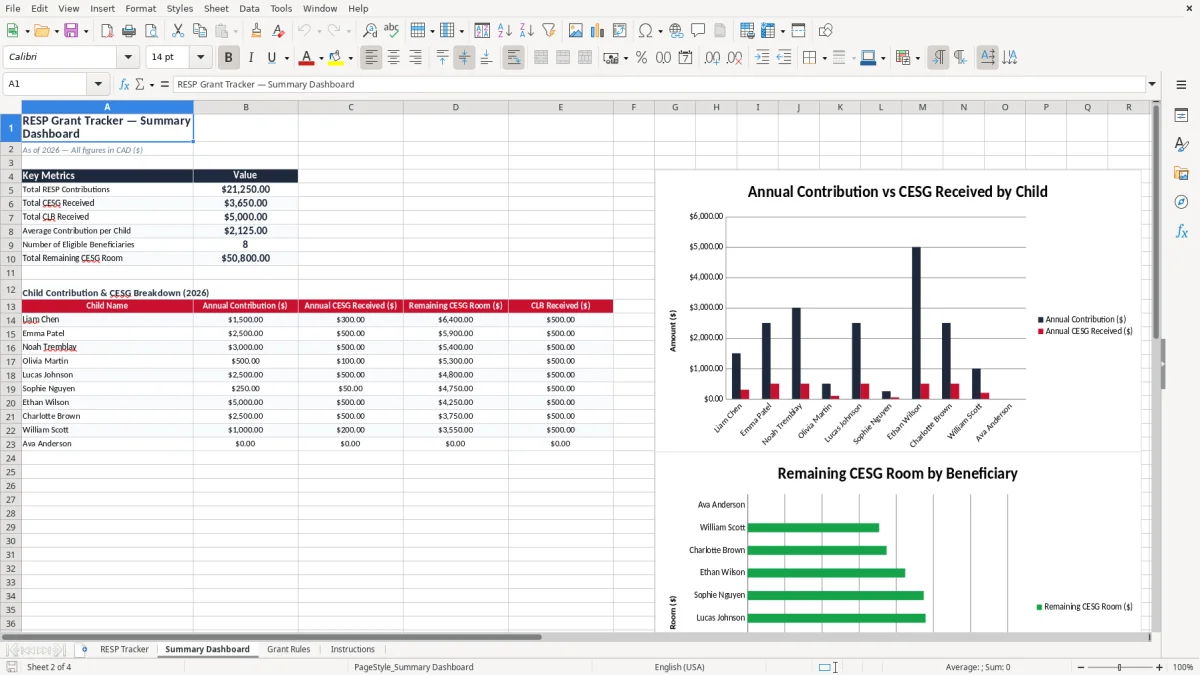
The Summary Dashboard (image 2) is there for fast review, not deep entry. If you are comparing five beneficiaries and one has already accumulated $7,500 in contributions while another has only $1,250, the dashboard lets you see the spread without opening every row.
For practical use, I prefer a spreadsheet like this over scattered bank screenshots because you can control the totals yourself and update them after each deposit. That makes the record useful at year-end, when you want to know what was paid in, what grant was received, and what room remains for the next contribution.
At year-end, the remaining balance naturally leads into an RRSP room tracker for checking what contribution space is still available.
The most common error is mixing up the contribution amount with the grant amount. A family may deposit $2,500 and assume the grant will always be $500, but if the annual contribution was split or recorded late, the file can become confusing fast.
Another problem is failing to keep lifetime totals current. If one child already has $15,000 of contributions recorded and another has $4,000, a family that uses the same notebook for both can easily enter a deposit in the wrong place.
A missed or poorly tracked deposit can cost time first, then grant money if you do not notice it early. If you are managing three beneficiaries and spend 20 minutes per account searching old statements, that is an hour gone for one update round.
The template’s separate columns for annual contributions, lifetime contributions, CESG received, and room remaining are there to reduce that risk. The Notes column is just as useful, because a short note like “deposit made after April statement” is often enough to explain why a year looks unusual later on.
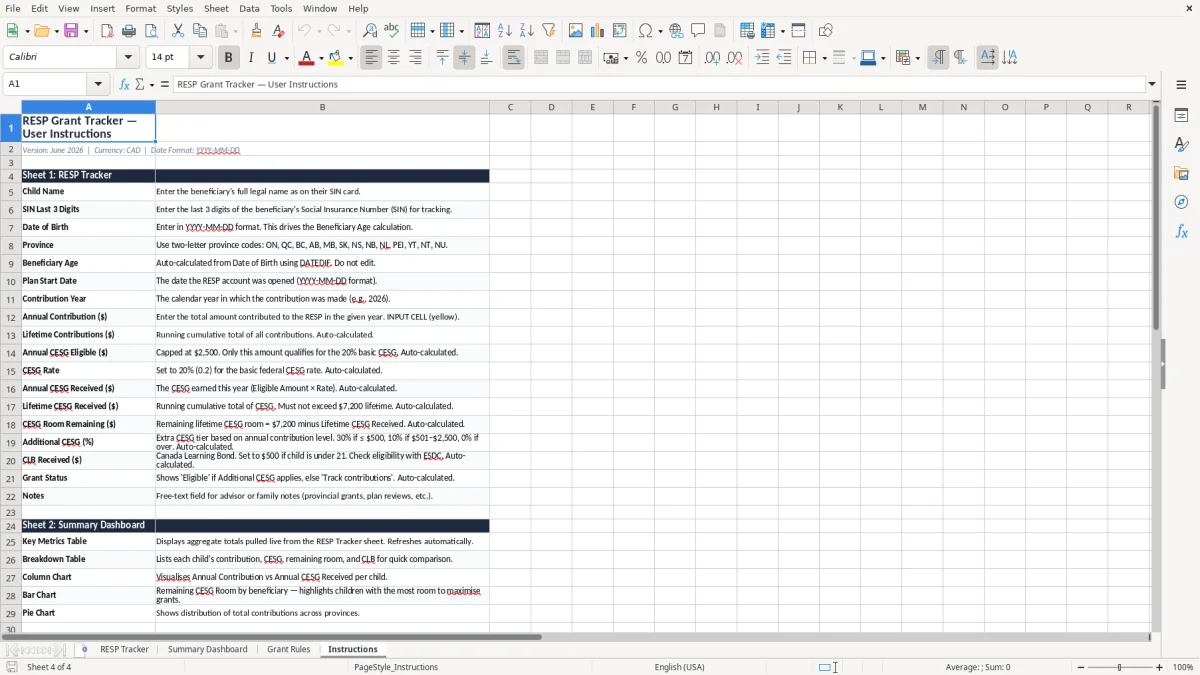
The other recurring failure is using unstructured dates. A file with mixed formats is harder to review, so the workbook uses YYYY-MM-DD formatting to keep the sequence clear when you are checking a school-year contribution pattern or a January-to-December deposit cycle.
The easiest way to keep this file alive is to update it on the same day you make the contribution or receive the confirmation from the plan provider. If you wait until month-end, you will be trying to reconstruct a $500 or $2,500 deposit from memory, and that is where records slip.
When the file grows to a large number of beneficiaries or you need statement-level reconciliation, you may outgrow a spreadsheet and want a dedicated RESP administration system. For most families, though, this workbook is enough to keep the contribution trail, grant history, and remaining room visible in one place.