
Maternity Top-Up Excel Template – Free (2026)
2
Free download
Track TFSA room, contributions, withdrawals, growth, and overcontributions in one Canada-focused workbook.
Download template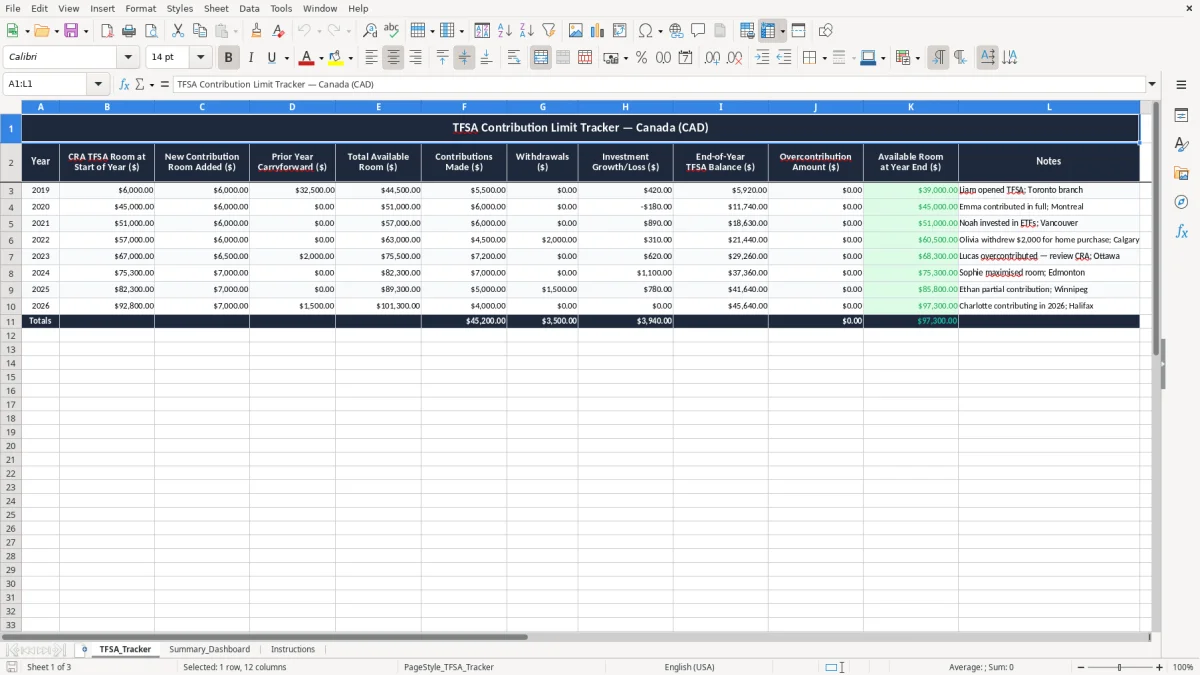
This TFSA contribution limit tracker is an Excel spreadsheet for Canada that helps you record annual TFSA room, contributions, withdrawals, investment growth or loss, and any overcontribution amount. It includes a tracker sheet, a summary dashboard, and an instructions sheet, so you can keep one clear record instead of relying on memory.
If you contribute to a TFSA more than the room you have available, the penalty can add up fast. This template gives you a simple year-by-year view in CAD, with totals and an end-of-year balance you can compare against your own records and your CRA account.
The workbook is built for people who want a practical control sheet they can update once or twice a year, not a complicated portfolio system. You enter the numbers, watch the available room update, and use the dashboard to see the position at a glance.
This spreadsheet is for anyone who needs to keep a reliable record of TFSA room instead of guessing from memory or scattered banking notes. A salaried employee who moves $500 a month into a TFSA, a couple saving $12,000 a year, or a self-employed person who only contributes after cash flow improves can all use the same layout.
The cleanest time to update it is right after a contribution, a withdrawal, or your annual review. If you make two $3,000 contributions in March and August, the year line shows $6,000 used and makes it obvious whether you still have room left.
The tracker sheet in image 1 is arranged by year, with room at the start, room added, carryforward, contributions, withdrawals, investment growth or loss, end-of-year balance, overcontribution, and notes. That is useful for a household with two accounts or for a bookkeeper helping a client who wants one clean record before the next deposit goes in.
A family that contributes $7,000 for one spouse and $4,000 for the other can see the difference immediately, rather than sorting through separate statements later. It also helps if you change banks, because the notes column can capture transfer details and keep the history together.
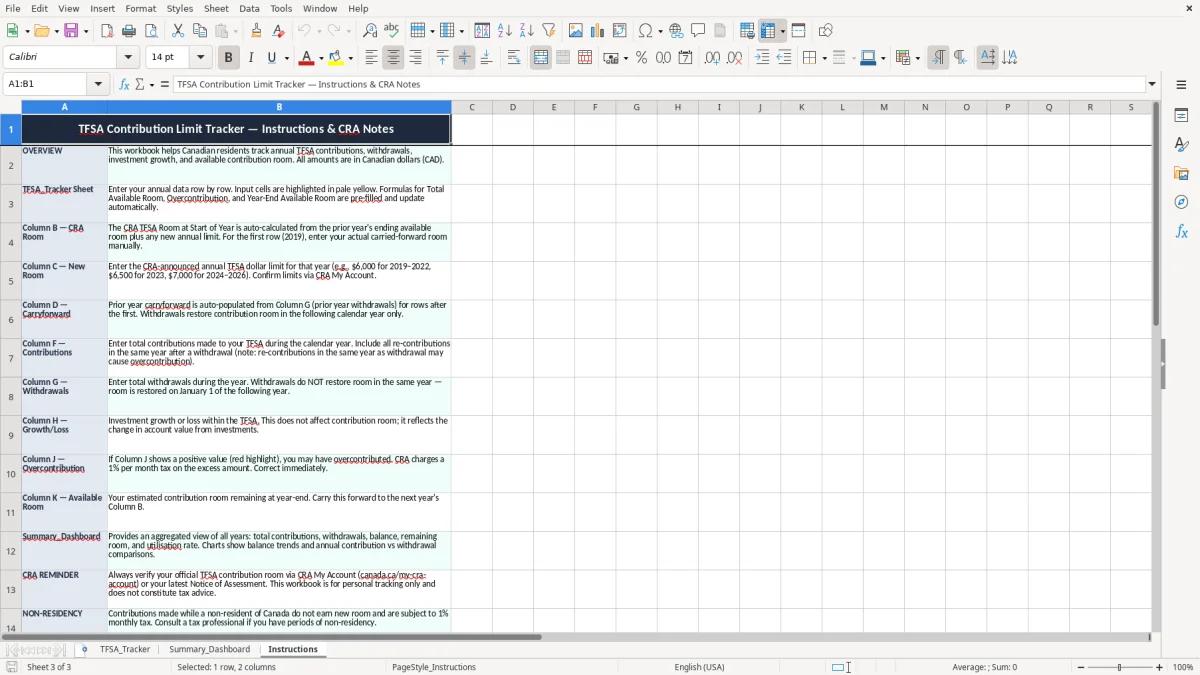
The CRA tracks TFSA room based on annual limits, withdrawals, and prior-year room, so the spreadsheet has to reflect those moving parts clearly. In 2026, the annual TFSA limit is $7,000, and if you withdraw $2,000 during the year, that withdrawal normally restores room the following calendar year.
If you start 2026 with $3,500 of unused room and add the new $7,000 annual limit, you have $10,500 available before any contributions. Contribute $8,000 and you still have $2,500 left; contribute $11,000 and the tracker should show a $500 overcontribution.
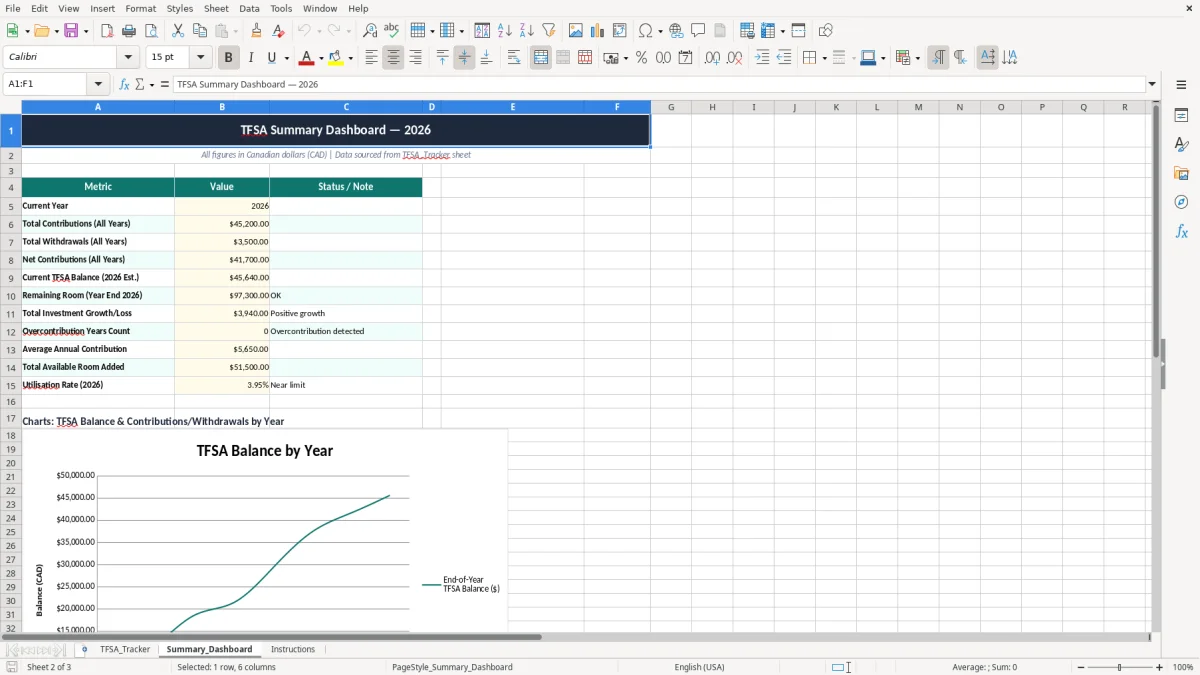
Image 2, the summary dashboard, is a quick internal control, not an official record from the CRA. That matters because your bank deposits, transfer timing, and prior-year withdrawals can affect the number you should use, especially when you are close to the annual limit.
For most people, the best habit is to keep this worksheet beside your own banking records and treat the CRA view as the final reference before making a new contribution. If you are contributing near the limit, a $500 mistake is enough to create a penalty problem, so the worksheet should be updated before the transfer, not after.
The biggest mistake is counting a withdrawal and a new contribution in the wrong year. If you pull $4,000 out in December and contribute it again before year-end, that withdrawal does not always give you fresh room immediately, and the spreadsheet needs a note so you do not repeat the same error next month.
An overcontribution of just $1,000 can trigger tax consequences until it is corrected, which is a poor trade for a spreadsheet entry that took 30 seconds to check. A client who contributes $7,000 twice because two accounts were not reconciled can end up with a number that is hard to unwind later.
Some people only watch the account balance and ignore the room columns. That approach breaks down as soon as the TFSA earns $900 of growth or drops by $600, because account value is not the same thing as contribution room.
The notes field in image 1 is there for things like transfers, late-year withdrawals, and CRA correspondence. If you ever need to explain a $2,500 transfer from one institution to another, those notes can save you an hour of digging through bank PDFs and email confirmations.
That same habit pays off when payroll deductions need to be reconciled later, and a remittance tracker keeps the CPP and EI trail just as clear as the TFSA notes.
The easiest way to keep this spreadsheet alive is to tie it to one existing routine, not to a vague promise to “update it later.” For example, review it on the first weekend of the month, or right after you check your bank balance before a new transfer.
Copy last year’s row into the next year if your pattern is stable, then change only the new figures. If you contribute $583.33 monthly, a simple row-by-row habit is easier than rebuilding the sheet every time.
If you are managing several registered accounts, multiple institutions, and frequent transfers, you may need a fuller portfolio system. For most households, though, this workbook is enough to keep contribution room visible and prevent a small error from becoming a bigger one.
The same approach extends to registered savings room when you need to keep another account’s contribution room visible across years.